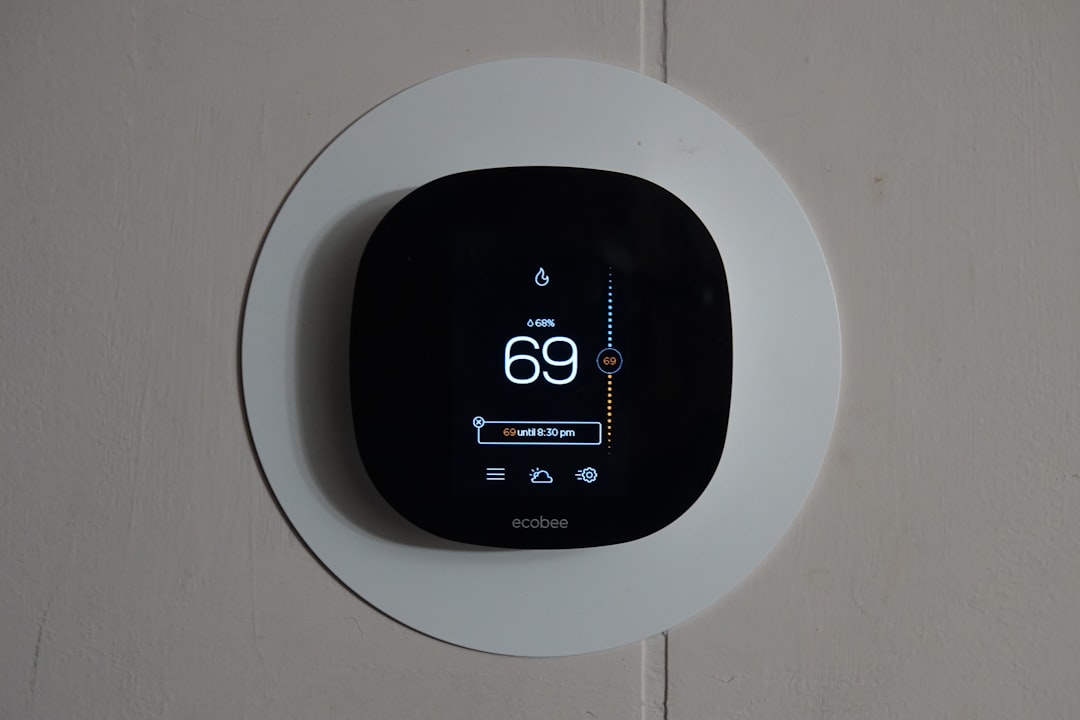
Smart home technology has taken giant leaps in the last decade, with devices like smart thermostats, lights, and voice assistants streamlining our daily lives. Among these, Ecobee thermostats stand out for their energy-saving features and ease of use. If you’re using Home Assistant for a centralized smart home setup and want to add an Ecobee thermostat, you may find that integrating it isn’t always straightforward—especially if you decide to go the HomeKit route. Let’s walk through the process of bringing your Ecobee thermostat into your Home Assistant environment by using Apple’s HomeKit protocol.
Table of Contents
TL;DR
If you want to use your Ecobee thermostat with Home Assistant via HomeKit, the process involves setting up the HomeKit Controller integration within Home Assistant. This allows you to bypass cloud dependencies and use local control for better speed and privacy. Make sure your Ecobee is HomeKit-compatible, unpaired from any existing HomeKit setups, and that your Home Assistant installation supports HomeKit integrations. This method offers smoother integration than traditional cloud APIs in many scenarios.
Why Choose HomeKit for Integration?
Before diving into the step-by-step guide, it’s worth understanding why you’d want to connect your Ecobee thermostat to Home Assistant through HomeKit instead of using Ecobee’s native cloud integration:
- Local Control: HomeKit operates over your local network, reducing latency and improving security.
- No Cloud Dependency: Your thermostat continues working even if your internet goes down.
- Faster Automations: Locally executed automations respond almost instantly.
If you’re already sold on the advantages, let’s look at how to bring everything together.
What You’ll Need
Before you start fiddling with Home Assistant or your Ecobee thermostat, make sure you have these items ready:
- An Ecobee thermostat with HomeKit support (e.g., Ecobee3 Lite, Ecobee SmartThermostat).
- A running instance of Home Assistant, preferably updated to the latest version.
- Access to the HomeKit pairing code (usually on the thermostat or packaging).
- Your mobile device with the Apple Home app if you need to unpair existing HomeKit connections.
Once you’ve ticked all those boxes, it’s time to move forward.
Step-by-Step: Adding Ecobee to Home Assistant via HomeKit
1. Remove Existing HomeKit Pairing (If Any)
Ecobee thermostats can only be paired with one HomeKit controller at a time. If it’s already paired with an iPhone or iPad through the Apple Home app, you’ll need to remove that pairing first:
- Open the Apple Home app on your iOS device.
- Press and hold the Ecobee accessory.
- Choose Settings and scroll down to select Remove Accessory.
- Confirm the removal.
This will reset the HomeKit pairing info on the Ecobee device, making it discoverable once again.
2. Enable the HomeKit Controller Integration in Home Assistant
Home Assistant includes a powerful integration called HomeKit Controller, which allows you to control HomeKit-enabled devices without needing an Apple hub like an iPad or Apple TV.
- Go to Settings > Devices & Services in the Home Assistant dashboard.
- Click on Add Integration and search for HomeKit Controller.
- Once enabled, Home Assistant will scan your network for any unpaired HomeKit devices.
Wait a few seconds to see if your Ecobee thermostat appears as a new device.
3. Pair Ecobee with Home Assistant
Now that your Ecobee is in pairing mode and Home Assistant is scanning for HomeKit devices:
- Select your Ecobee thermostat from the list of discovered devices.
- You’ll be prompted to enter the 8-digit HomeKit setup code, typically found on the device itself or in its user manual.
- Enter the code and wait for the pairing to complete (this may take a few minutes).
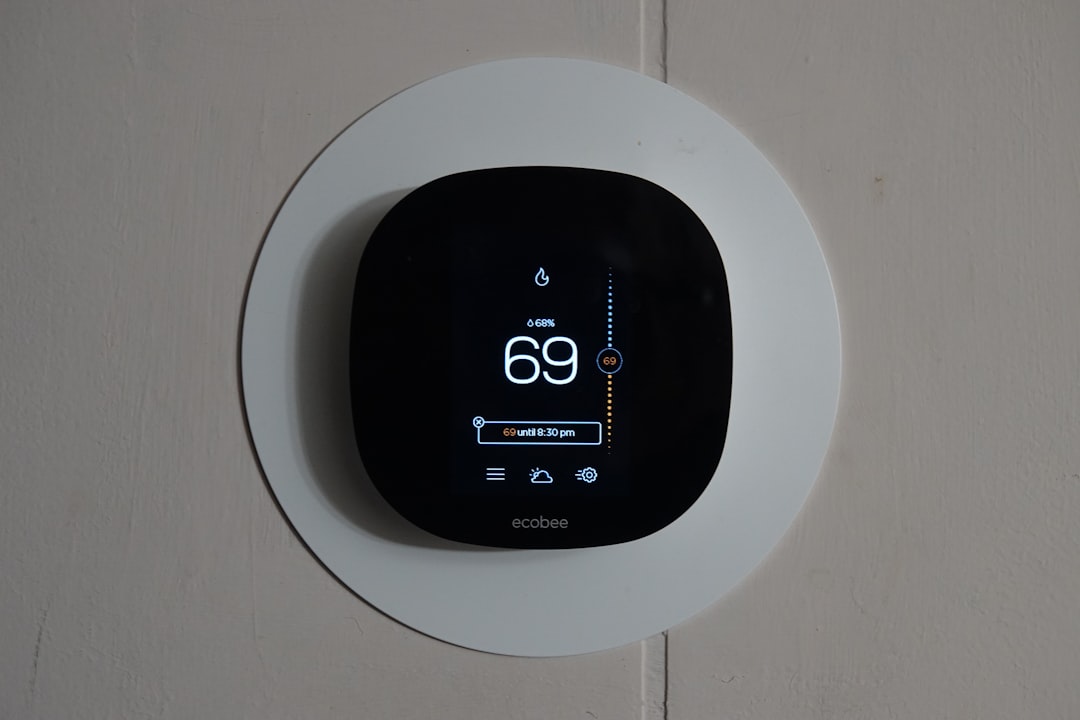
Once the pairing is successful, you’ll have access to various thermostat controls from within Home Assistant!
Verifying Your Device in Home Assistant
To make sure everything went smoothly, head back to the Devices & Services section:
- Find the Ecobee device under “Devices.”
- You should now be able to adjust the temperature, set HVAC modes, and view current readings like temperature and humidity.
- Try creating a basic automation or script to test responsiveness.
This is a great time to explore using the thermostat in automations. Want the temperature to drop 2 degrees when you leave the house? You can do that now with minimal lag.
Tips for a Smoother Experience
Integrating smart devices into Home Assistant is not always plug-and-play. Here are a few best practices to keep your setup running flawlessly:
- Use static IPs: Set a static IP for your Ecobee thermostat to avoid network issues.
- Beta firmware caution: Avoid enrolling your thermostat in beta firmware programs unless absolutely necessary.
- Update Home Assistant: Keep Home Assistant updated to benefit from the latest integration improvements and bug fixes.
Troubleshooting Common Issues
Ecobee Not Discovered
If you don’t see your Ecobee thermostat in the Home Assistant discovery list, try these fixes:
- Restart Home Assistant and make sure your Ecobee is in pairing mode.
- Double-check your Wi-Fi network—both devices must be on the same one.
- Ensure no residual HomeKit associations remain by doing a factory reset on your thermostat (consult manufacturer instructions).
Pairing Code Not Working
If you’re getting errors while entering the HomeKit pairing code:
- Ensure there are no typos in the 8-digit code.
- Try rebooting the thermostat and repeating the process.
- Make sure the device isn’t already paired with another controller.
Control Lags or Doesn’t Apply
This could be due to network instability or overburdened integrations:
- Ensure that the Home Assistant machine has a stable network connection.
- Reduce unnecessary automations that may overwhelm the system.
- Try restarting Home Assistant and monitor the logs for errors.
Why This Method Might Be Better Than the Official Ecobee Integration
While Home Assistant does support a native cloud-based Ecobee integration, it comes with a host of constraints:
- Rate-limited updates: Data updates only happen once every few minutes.
- Dependency on Ecobee’s servers: If their servers go down, your automations may stop working.
- Authentication complexity: OAuth tokens can expire or become unlinked, requiring manual intervention.
Using HomeKit as the bridge eliminates most of these problems, relying solely on your local area network for communication. The result? Faster, more private, and more reliable control of your smart thermostat.
Final Thoughts
Bringing your Ecobee thermostat into Home Assistant using the HomeKit Controller integration is a smart way to get faster, more reliable functionality without depending on third-party cloud services. It also gives you a level of control and flexibility that the official integration simply doesn’t offer. Whether you’re automating morning routines or triggering climate changes based on occupancy, the HomeKit route turns your thermostat from smart to genius.
With just a few setup steps and a little patience, your smart home game can be elevated significantly. So go ahead—pair up and personalize your climate system like never before!