Creating a logo used to mean hiring a designer, learning complicated software, or spending hours sketching ideas that never quite looked professional. Today, AI-powered design tools make the process much faster and more accessible. If you are launching a startup, refreshing a personal brand, opening an online store, or building a side project, the Designhill AI Logo Maker can help you create a polished logo on your own without needing advanced design skills.
TLDR: The Designhill AI Logo Maker lets you create a custom logo by entering your brand name, choosing styles, selecting colors, and reviewing AI-generated logo options. You can edit your favorite design, adjust fonts and icons, and download files for websites, social media, business cards, packaging, and more. The key is to start with a clear brand identity, choose a simple and memorable design, and test how your logo looks across different platforms before finalizing it.
Table of Contents
Why Your Logo Matters More Than You Think
A logo is often the first visual detail people notice about a business. It appears on your website, social profiles, email signature, invoices, product labels, advertisements, and even packaging. A strong logo does more than look attractive; it communicates personality, values, and professionalism in a compact visual form.
Think of a logo as a shortcut to recognition. When customers see it repeatedly, they begin to associate it with your products, service quality, tone, and overall experience. That is why choosing a logo should not be treated as a last-minute task. Even if you are creating it yourself, the design should feel intentional.
The good news is that you do not need to be a trained graphic designer to create something visually appealing. With Designhill’s AI-based approach, you provide the creative direction, and the tool generates logo concepts based on your preferences.
Step 1: Understand Your Brand Before You Start
Before opening the logo maker, take a little time to define your brand. AI can generate designs quickly, but the quality of your final choice depends heavily on the clarity of your input. If you know what your brand stands for, you will make better decisions when choosing fonts, colors, symbols, and layouts.
Ask yourself a few simple questions:
- What does my business do? Be specific about your product, service, or niche.
- Who is my target audience? A logo for a children’s toy brand should feel different from one for a legal consultancy.
- What personality should my brand express? Is it elegant, bold, playful, modern, trustworthy, luxurious, or eco-friendly?
- Where will the logo be used most often? Consider websites, apps, printed material, packaging, signs, or merchandise.
- What should people feel when they see it? Confidence, excitement, comfort, curiosity, or sophistication?
Writing down a few keywords can help. For example, a fitness coaching brand might use words like energy, strength, progress, discipline. A handmade candle business might use warm, calm, natural, cozy. These words will guide your design choices.
Step 2: Enter Your Brand Name and Industry
Once you begin using the Designhill AI Logo Maker, you will usually start by entering your business or brand name. This is the main text that will appear in the logo. If you have a slogan, tagline, or short phrase, you may also add it later, depending on the design format you choose.
Next, select your industry or business category. This step helps the AI understand the visual language that may suit your field. For instance, technology companies often use clean geometric shapes, while restaurants may use icons related to food, utensils, or warmth. A wellness brand might use flowing lines, leaves, or soft color palettes.
Choosing the right industry helps produce logo concepts that feel more relevant. However, do not feel trapped by industry conventions. Sometimes the most memorable logos come from combining familiar elements with an unexpected style.
Step 3: Choose Logo Styles You Like
The Designhill AI Logo Maker may ask you to pick from sample logos or visual styles. This is where you tell the system what kind of aesthetic appeals to you. Take your time here because these choices influence the generated results.
Common logo styles include:
- Minimal: Clean, simple, and modern, often using limited detail.
- Classic: Timeless and balanced, suitable for professional or heritage brands.
- Bold: Strong shapes and high contrast, ideal for brands that want impact.
- Elegant: Refined fonts and graceful layouts, often used in beauty, fashion, and luxury sectors.
- Playful: Friendly, colorful, and energetic, great for children’s products, cafés, or creative services.
- Tech-inspired: Sleek, futuristic, and structured, often useful for software, apps, and innovation-focused companies.
As you choose styles, think about how your audience will interpret them. A playful logo may be attractive, but it may not be right for a financial advisory firm. A highly corporate logo may look trustworthy, but it could feel too serious for a handmade craft brand.
Step 4: Select Colors That Match Your Message
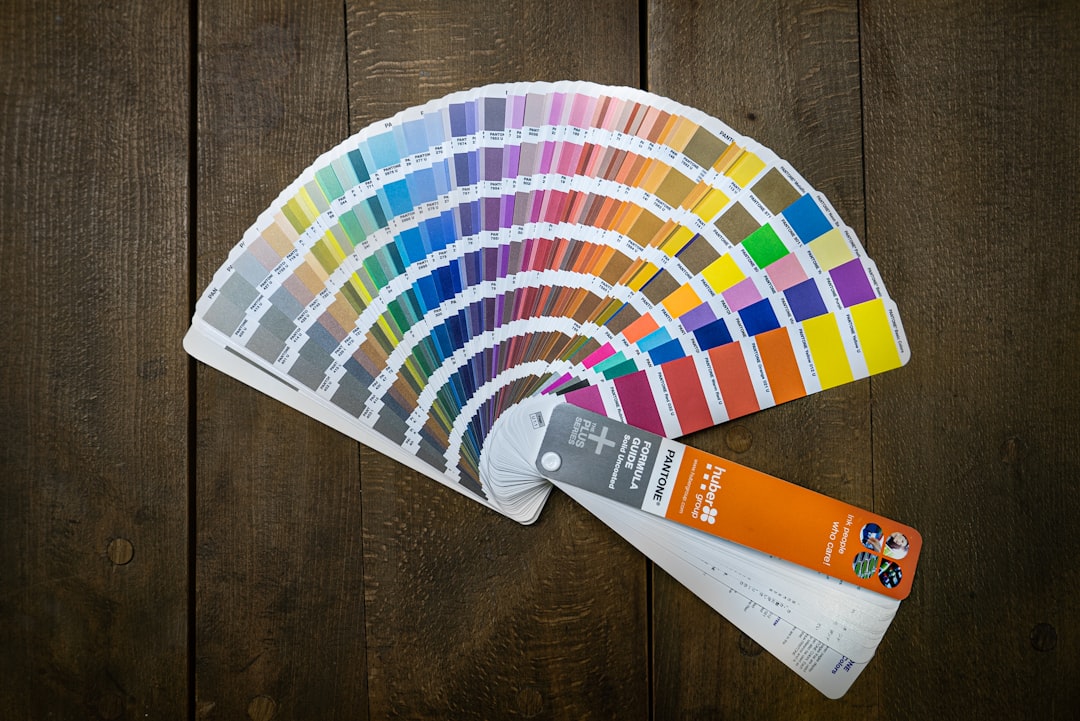
Color is one of the most powerful elements in logo design. Different colors create different associations, and while meanings vary by culture and context, some general impressions are common.
- Blue: Trust, calm, professionalism, stability.
- Red: Energy, passion, urgency, excitement.
- Green: Nature, health, growth, sustainability.
- Yellow: Optimism, friendliness, warmth, creativity.
- Black: Luxury, strength, elegance, authority.
- Purple: Imagination, premium quality, creativity, mystery.
- Orange: Enthusiasm, confidence, approachability, movement.
In the Designhill AI Logo Maker, you can select colors that fit your brand direction. If you are unsure, choose one primary color and one supporting color. Too many colors can make a logo look busy or difficult to reproduce. A simple palette is usually easier to remember and more versatile.
Step 5: Review AI-Generated Logo Concepts
After you provide your preferences, the AI generates a range of logo options. This is often the most exciting part of the process because you can quickly see many different interpretations of your brand identity. Some may focus on typography, others may include symbols or icons, and some may combine both.
When reviewing options, avoid choosing only the design that looks flashy at first glance. Instead, evaluate each logo using practical criteria:
- Is it readable? Your brand name should be clear, even at smaller sizes.
- Is it distinctive? It should not feel too generic or easily confused with competitors.
- Is it scalable? It should work on a large banner as well as a tiny social media profile image.
- Is it relevant? The style should match your business and audience.
- Is it memorable? A good logo should leave a quick visual impression.
You may find two or three promising designs rather than one perfect option immediately. Save your favorites and compare them side by side. Sometimes a logo that looks understated at first becomes the strongest choice because it is cleaner and more flexible.
Step 6: Customize the Logo
Once you select a logo concept, customization allows you to make it feel more personal. The Designhill AI Logo Maker typically lets you adjust several design elements, such as fonts, colors, icons, spacing, layout, and text placement.
Focus on refinement rather than over-editing. A common mistake is adding too many effects, colors, outlines, or decorative elements. Professional logos are usually simple because simplicity improves recognition. If your design starts to look crowded, remove something rather than add more.
Pay special attention to typography. Fonts communicate personality just as strongly as icons do. A serif font may feel established and traditional, while a sans serif font often feels modern and clean. Script fonts can look elegant or personal, but they must remain readable. If your brand name is long, a simpler typeface may work better.
Step 7: Test Your Logo in Real Situations
Before finalizing your logo, imagine how it will appear in daily use. A design might look excellent on a white screen but lose impact on a dark background, a product label, or a mobile app icon. Testing helps you avoid problems before you commit.
Check your logo in these situations:
- Website header: Does it fit neatly without appearing too tall or too wide?
- Social media profile: Is it recognizable in a small circular or square format?
- Business card: Does the text remain readable when printed small?
- Black and white version: Does the design still work without color?
- Merchandise or packaging: Would it look clean on boxes, labels, bags, or shirts?

If the logo becomes unclear at small sizes, consider simplifying the icon or increasing the weight of the font. If the color contrast is weak, choose a stronger combination. A practical logo should perform well everywhere, not just in one ideal preview.
Step 8: Download the Right Logo Files
After finalizing your design, download the available logo files. Different formats serve different purposes, so it is useful to understand what you may need.
- PNG: Great for websites, presentations, and social media, especially when you need a transparent background.
- JPG: Useful for general digital use where a background is acceptable.
- SVG or vector files: Ideal for scaling your logo without losing quality, especially for printing and signage.
- PDF: Often useful for professional printing and sharing with vendors.
Keep your files organized in a folder with clear labels. You may want separate versions for full color, black, white, horizontal layout, stacked layout, and icon-only use. Having these variations ready will make branding much easier as your business grows.
Tips for Creating a Better Logo on Your Own
Even with AI assistance, your judgment matters. The strongest logos usually follow a few timeless principles. First, keep the design simple. A complicated logo can be difficult to recognize and hard to reproduce. Second, make sure it fits your brand rather than simply following trends. Trendy designs may look current today but feel outdated quickly.
Third, consider your competitors. Look at logos in your industry and notice common colors, symbols, and styles. You do not want to copy them, but you do want to understand the visual landscape. If every competitor uses blue, you might still use blue for trust, or you might choose a different color to stand out.
Finally, get feedback from a few people who understand your target audience. Ask specific questions such as, “What kind of business do you think this represents?” or “What feeling does this design give you?” Their answers can reveal whether your logo communicates what you intended.
Common Mistakes to Avoid
- Choosing a logo only because it looks cool: Style matters, but relevance matters more.
- Using too many fonts: One or two fonts are usually enough.
- Ignoring readability: If people cannot read your name, the logo is not doing its job.
- Overusing icons: A symbol should support the brand, not clutter the design.
- Skipping file preparation: Make sure you have formats suitable for digital and print use.
Final Thoughts
The Designhill AI Logo Maker gives entrepreneurs, freelancers, and small business owners a practical way to create a professional logo independently. It combines speed with creative flexibility, helping you explore many design directions without starting from a blank page.
The best results come from pairing AI-generated options with thoughtful decision-making. Know your brand, choose styles with purpose, keep the design simple, and test it in real-world settings. With the right approach, you can create a logo that not only looks good but also helps people recognize, remember, and trust your brand.