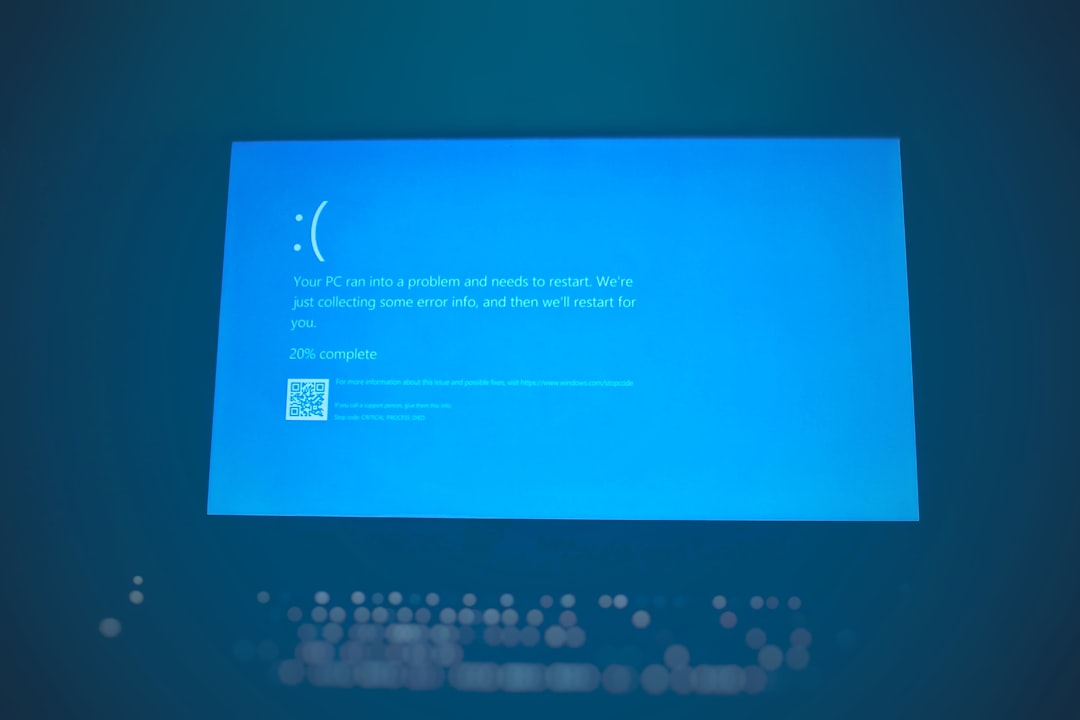
When a Windows system crashes with the infamous Blue Screen of Death (BSOD), it often creates a small file known as a minidump file. This file contains critical information about the crash, helping developers, IT professionals, and advanced users diagnose the underlying issue. However, many users encounter a frustrating problem: they simply cannot open the minidump file. Whether the file appears unreadable or the system does not recognize it, this issue can prevent proper troubleshooting and delay problem resolution.
TL;DR: Minidump files are crash reports created by Windows during system failures. If they cannot be opened, it is usually due to missing debugging tools, corrupted files, or incorrect file associations. Installing the correct software like WinDbg, ensuring proper file paths, and verifying system settings typically resolves the issue. This guide explains step-by-step solutions and common causes.
Understanding how to fix this issue requires a basic grasp of what minidump files are and what tools are needed to read them. Below is a comprehensive guide to help users successfully access and analyze these important diagnostic files.
Table of Contents
What Is a Minidump File?
A minidump file (.dmp) is created whenever Windows encounters a system crash. It typically contains:
- Stop error code (also known as bug check code)
- List of loaded drivers
- Processor context information
- Memory stack data
- System information at the time of the crash
Minidump files are usually stored in the following directory:
C:\Windows\Minidump
Because these files are primarily designed for debugging, they cannot be opened like standard text documents. Specialized tools are required.

Common Reasons You Cannot Open a Minidump File
There are several potential causes behind this issue. Identifying the correct one is the first step toward resolving it.
1. Missing Debugging Tools
Windows does not include a dedicated dump file viewer by default. Without tools such as WinDbg (Windows Debugger), the system does not know how to interpret the file.
2. File Association Errors
The operating system may not associate .dmp files with the proper application, resulting in error messages when attempting to open them.
3. Corrupted Dump File
If the crash interrupted the writing process, the minidump file could be incomplete or corrupted.
4. Insufficient Permissions
Administrative privileges are sometimes required to access files within the Windows directory.
5. Incorrect Symbol Path Configuration
Even if WinDbg opens the file, it may fail to analyze it properly if debugging symbols are missing or not configured.
How to Fix the Problem
Step 1: Install WinDbg
The most reliable method for opening minidump files is using WinDbg, available through the Microsoft Store or as part of the Windows SDK.
- Open Microsoft Store.
- Search for WinDbg Preview.
- Install the application.
- Launch the program with administrative privileges.
Once installed, users can open a minidump file by selecting File → Open Dump File inside the application.
Image not found in postmetaStep 2: Configure Symbol Path
Symbols help translate memory addresses into readable information. Without them, the analysis will be incomplete or unclear.
To configure the symbol path in WinDbg:
- Open WinDbg.
- Go to File → Symbol File Path.
- Enter the following:
srv*C:\Symbols*https://msdl.microsoft.com/download/symbols
This command allows WinDbg to download necessary symbol files from Microsoft automatically.
Step 3: Run Analysis Command
After opening the dump file:
- Type !analyze -v in the command window.
- Press Enter.
The debugger will generate a detailed report, including possible causes and faulty drivers.
Step 4: Check File Permissions
If access is denied:
- Right-click the minidump file.
- Select Properties → Security.
- Ensure that the user account has read permission.
- Run WinDbg as administrator.
Step 5: Verify the File Is Not Corrupted
If WinDbg cannot open the file despite correct setup, the dump file may be corrupted. To verify:
- Check the file size (very small files may indicate corruption).
- Ensure the system did not abruptly lose power during crash logging.
- Look for other dump files in the Minidump directory.
Alternative Tools for Opening Minidump Files
While WinDbg is the most advanced option, other tools may be easier for less experienced users.
BlueScreenView
This lightweight utility scans the Minidump folder automatically and displays crash information in a readable format.
WhoCrashed
This software provides plain-language explanations of crash dump data, making it accessible to non-technical users.

Ensuring Windows Is Properly Configured to Create Minidumps
Sometimes the issue is not opening the file—but the file not being created at all. To verify that Windows is configured properly:
- Right-click This PC.
- Select Properties.
- Click Advanced system settings.
- Under Startup and Recovery, click Settings.
- Ensure Small memory dump (256 KB) is selected.
- Confirm the path is set to %SystemRoot%\Minidump.
Users should also verify that:
- The system drive has sufficient free space.
- Paging file is enabled.
- No disk errors are present.
Common Errors and Their Meanings
During analysis, some common error messages might appear:
- BugCheck Code – Identifies the type of system crash.
- MODULE_NAME – Points to the likely faulty driver.
- IMAGE_NAME – Shows which file caused the issue.
- STACK_TEXT – Provides call stack details.
If a specific driver repeatedly appears, updating or reinstalling that driver often resolves future crashes.
Preventing Future Minidump Issues
To avoid repeating problems:
- Keep Windows updated.
- Regularly update device drivers.
- Scan for malware.
- Run memory diagnostics.
- Monitor hardware temperatures.
System stability plays a significant role in ensuring valid and complete minidump files are generated.
When to Seek Professional Help
While many users can analyze dump files independently, complex cases may require IT support. This is especially true when:
- Crashes occur frequently.
- Hardware failure is suspected.
- Enterprise systems are affected.
- Data loss risks exist.
Professional technicians can perform deeper kernel-level analysis and hardware diagnostics.
FAQ
1. Why does my computer say it cannot open .dmp files?
Windows does not natively support viewing .dmp files as regular documents. A debugger such as WinDbg or a specialized tool like BlueScreenView is required.
2. Are minidump files safe to delete?
Yes, they are primarily diagnostic files. Deleting them will not harm the system, but it will remove crash history data that may be useful for troubleshooting.
3. Why is my Minidump folder empty?
The system may not be configured to create small memory dumps, or a crash did not generate one properly. Verify settings under Startup and Recovery.
4. Can I open a minidump file without technical knowledge?
Yes. Tools like WhoCrashed simplify the analysis process and provide readable summaries without requiring command-line interaction.
5. What does “symbols not loaded” mean in WinDbg?
This message indicates that WinDbg cannot access debugging symbols required for detailed analysis. Configuring the correct symbol file path typically resolves this.
6. Do minidump files contain personal data?
Minidump files generally contain system information and memory data related to the crash, but they rarely include personal files. However, caution should be exercised when sharing them.
7. How large is a typical minidump file?
Most small memory dump files are around 256 KB in size. Larger memory dumps may be several megabytes or more depending on configuration.
8. Can a corrupted minidump file be repaired?
No reliable method exists to repair a corrupted dump file. The best solution is to analyze a different dump file from another crash instance.
By installing the proper debugging tools, configuring settings correctly, and understanding the nature of these files, users can successfully open and analyze minidump files. With the right approach, what once seemed like an inaccessible system artifact becomes a powerful tool for diagnosing and resolving Windows crashes.