Few things are more frustrating than opening your messaging app, tapping the text field—and realizing you can’t type anything at all. Whether you’re trying to send an urgent work update or reply to a friend, a non-responsive keyboard can feel like a full device meltdown. The good news? In most cases, the issue is minor and easy to fix.
TL;DR: If you can’t type in Messages, the problem is usually caused by a frozen keyboard app, outdated software, incorrect settings, or a temporary system glitch. Restarting your device, updating your OS, clearing cache, or resetting keyboard settings often restores input instantly. Before assuming the worst, try the simple fixes below—you’ll likely be typing again in minutes.
Table of Contents
Why You Suddenly Can’t Type in Messages
When your keyboard stops working, the root cause typically falls into one of these categories:
- Software glitches (temporary system freezes)
- Keyboard app crashes
- Outdated operating system
- Corrupted app cache or data
- Conflicting third-party keyboard apps
- Physical screen or touch issues
Let’s walk through 10 easy fixes that can restore your keyboard instantly.
1. Restart Your Device (The Fastest Fix)
It may sound basic—but restarting fixes more keyboard issues than almost anything else.
A simple reboot:
- Clears temporary memory glitches
- Resets background processes
- Forces frozen apps to reload properly
How to do it:
- iPhone: Hold the side button + volume button → Slide to power off → Turn back on.
- Android: Hold the power button → Tap Restart.
If your keyboard appears immediately after restarting, the problem was likely a temporary system freeze.
2. Force Close and Reopen the Messaging App
Sometimes the issue isn’t the keyboard—it’s the Messages app itself.
Steps:
- Open your recent apps view.
- Swipe away the Messages app to close it.
- Reopen the app and try typing again.
If the text field becomes responsive, you were dealing with a minor app crash.
3. Check if Your Keyboard App Is Disabled
If you’re using a third-party keyboard like Gboard or SwiftKey, it may have been:
- Disabled during an update
- Restricted by device settings
- Turned off accidentally
Android:
Go to Settings → System → Languages & Input → On-screen Keyboard.
iPhone:
Go to Settings → General → Keyboard → Keyboards.
Make sure your preferred keyboard is selected and active.
4. Update Your Operating System
Outdated software frequently causes keyboard and messaging issues. Updates often include bug fixes that directly impact input functionality.
To update:
- iPhone: Settings → General → Software Update
- Android: Settings → System → Software Update
If an update is available, install it and restart your device.
5. Clear Keyboard App Cache (Android Only)
On Android devices, cache buildup can corrupt keyboard performance.
Steps:
- Go to Settings → Apps
- Select your keyboard app (Gboard, Samsung Keyboard, etc.)
- Tap Storage
- Choose Clear Cache
Important: Avoid tapping “Clear Data” unless necessary, as it may reset preferences.
6. Switch to the Default System Keyboard
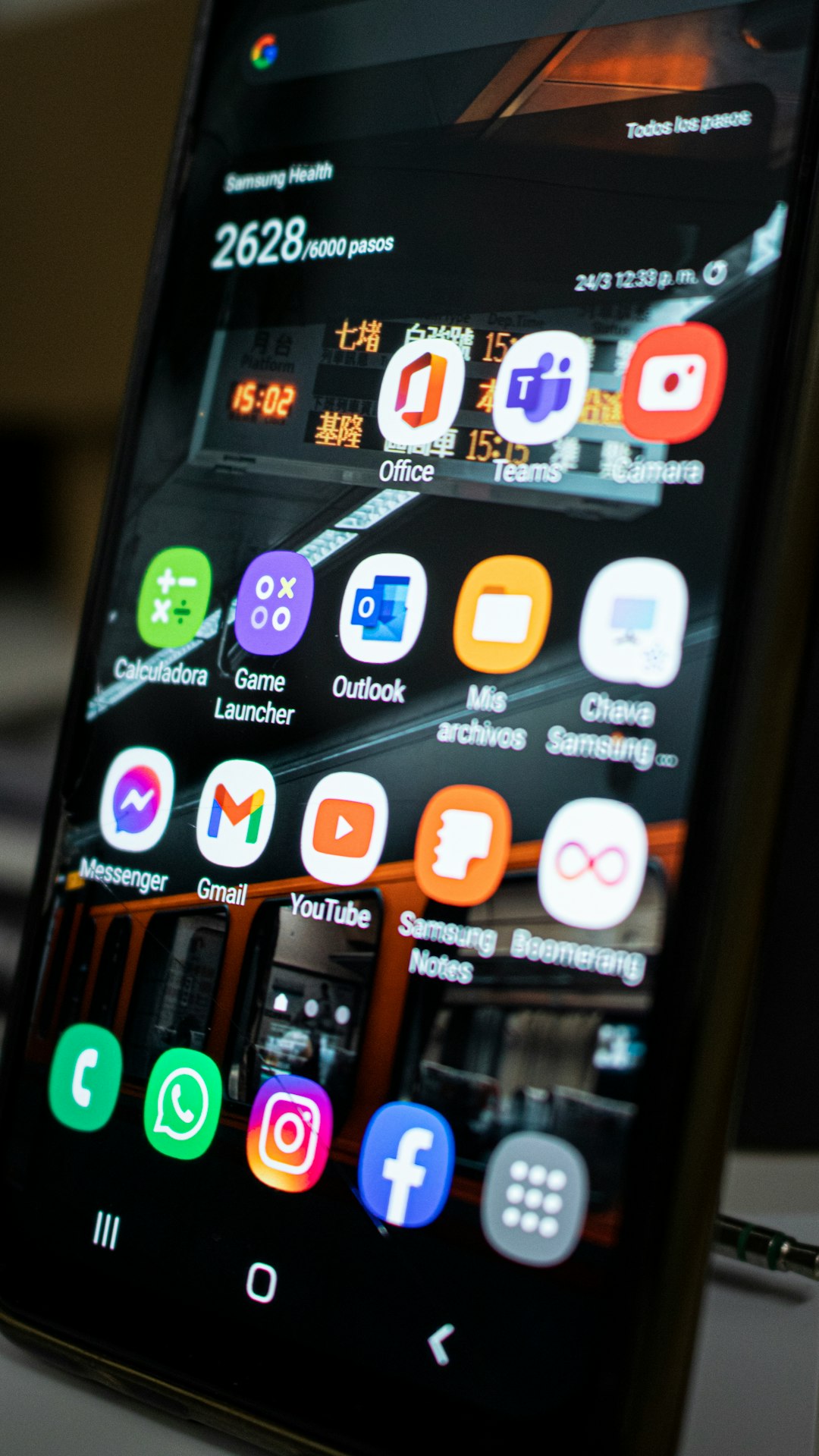
Sometimes third-party keyboards conflict with system updates.
Try switching back to your device’s built-in keyboard:
- Android: Settings → Languages & Input → Default Keyboard
- iPhone: Remove third-party keyboard in Settings → Keyboard
If typing resumes immediately, the issue likely lies with your external keyboard app.
7. Reset Keyboard Settings
If autocorrect, language packs, or predictive text settings become corrupted, the keyboard may fail to load.
iPhone:
Settings → General → Transfer or Reset iPhone → Reset → Reset Keyboard Dictionary
Android:
Settings → Apps → Keyboard → Storage → Clear Data (if necessary)
This can fix stubborn input recognition issues.
8. Check for Screen or Touch Issues
If you tap letters and nothing registers, the problem may be hardware-related.
Test by:
- Opening another app and typing there
- Rotating your phone (to reposition the keyboard)
- Testing different areas of the touchscreen
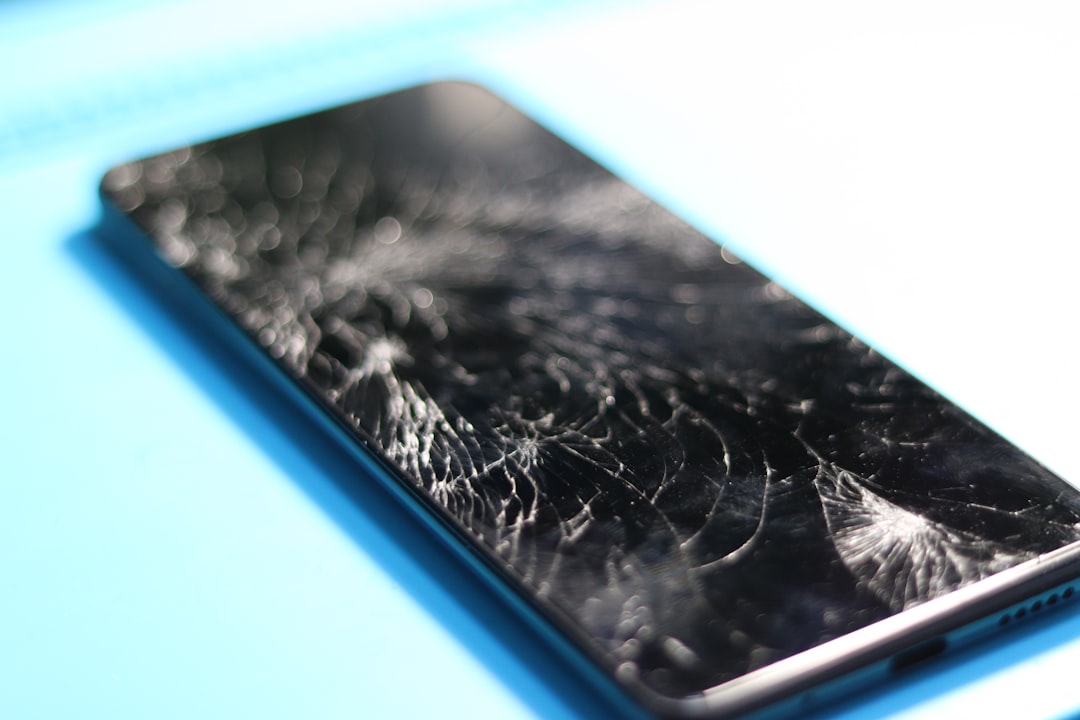
If only one portion of the screen doesn’t respond, you may be dealing with:
- A cracked digitizer
- Water damage
- Screen protector interference
9. Disable Bluetooth Keyboards or Accessories
If you previously connected an external keyboard, your phone may still think it’s active.
Fix:
- Turn off Bluetooth temporarily
- Unpair old keyboard devices
Once disconnected, your on-screen keyboard should reappear automatically.
10. Boot in Safe Mode (Android) or Reset Settings (iPhone)
If nothing works, an app conflict may be the culprit.
For Android: Safe Mode
Safe Mode disables third-party apps temporarily.
- Hold the power button.
- Press and hold “Power off.”
- Select Safe Mode.
If the keyboard works in Safe Mode, uninstall recently downloaded apps.
For iPhone: Reset All Settings
Go to:
Settings → General → Transfer or Reset → Reset → Reset All Settings
This won’t delete your data but will reset system configurations.
Quick Comparison Chart: Which Fix Should You Try First?
| Fix | Difficulty | Time Required | Best For |
|---|---|---|---|
| Restart Device | Very Easy | 1–2 minutes | Random freezes or glitches |
| Force Close App | Easy | 30 seconds | Messaging app crash |
| Update OS | Easy | 5–15 minutes | Persistent system bugs |
| Clear Keyboard Cache | Moderate | 2–3 minutes | Android keyboard lag/crash |
| Switch Keyboard | Easy | 1 minute | Third-party conflicts |
| Safe Mode / Reset | Advanced | 5–10 minutes | App conflicts or deep system issues |
When It’s More Than a Simple Glitch
If none of these fixes restore keyboard input, you may need to consider:
- A factory reset (last resort)
- Professional device repair
- Screen replacement
- OS reinstallation
However, in most real-world cases, a simple restart or app reset resolves the issue instantly.
How to Prevent Keyboard Problems in the Future
Prevention is easier than repair. Follow these best practices:
- Keep your operating system updated
- Avoid installing too many keyboard apps
- Clear app cache periodically (Android)
- Restart your device weekly
- Use high-quality screen protectors
These small maintenance habits drastically reduce unexpected input failures.
Final Thoughts
Not being able to type in Messages can feel like your phone has completely broken down—but in reality, it’s almost always a temporary, fixable issue. From simple restarts to clearing keyboard cache or updating software, the solution is usually just a few taps away.
The next time your keyboard disappears or refuses input, stay calm and work through these fixes step by step. In most cases, you’ll be back to typing—and texting—within minutes.
Tech problems can be annoying—but with the right approach, they’re almost always reversible.