When a reliable USB microphone like the Fifine K678 suddenly stops working, it can disrupt meetings, streaming sessions, podcasts, and recordings. Whether the issue is no sound, poor audio quality, or the device not being recognized at all, the problem is often easier to fix than expected. With a systematic approach, most users can get their microphone back online without professional help.
TLDR: If the Fifine K678 is not working, start by checking the USB connection and trying a different port or cable. Ensure the microphone is selected as the default input device and verify system permissions. Update or reinstall audio drivers if necessary and inspect your recording software settings. In most cases, one of these quick fixes restores full functionality within minutes.
Table of Contents
Understanding Why the Fifine K678 Stops Working
The Fifine K678 is a plug-and-play USB microphone known for its affordability and quality sound. Since it does not require complex drivers, most issues stem from system settings, faulty cables, outdated drivers, or configuration mismatches.
Common symptoms include:
- The computer not detecting the microphone
- No audio input despite being connected
- Audio cutting out intermittently
- Distorted or extremely quiet recordings
Below are six quick fixes that resolve most problems.
1. Check the USB Connection and Cable
The most overlooked issues are often the simplest ones. A loose cable, faulty USB port, or damaged connector can prevent the Fifine K678 from functioning correctly.
What to Do:
- Disconnect the microphone and reconnect it firmly.
- Try a different USB port on the computer.
- Avoid using USB hubs; connect directly to the device.
- Test with a different compatible USB cable if available.
If the microphone powers on (indicator light visible) but still is not detected, the issue may lie within system settings rather than hardware.
Pro Tip: Some USB ports may not supply consistent power. Switching from a front panel port to a rear motherboard port can immediately solve connectivity issues.
2. Set the Fifine K678 as the Default Input Device
Sometimes the computer detects the microphone but does not use it as the primary recording device. This commonly happens after system updates or when multiple audio devices are connected.
On Windows:
- Right-click the speaker icon in the taskbar.
- Select Sound Settings.
- Under Input, choose the Fifine K678.
- Click Device Properties to confirm it is enabled.
On macOS:
- Open System Settings.
- Select Sound.
- Click the Input tab.
- Choose Fifine K678 from the list.
If the microphone does not appear in the list at all, the issue likely relates to drivers or hardware detection.
3. Check Microphone Permissions
Operating systems now require apps to have explicit permission to access microphones. If permissions are disabled, the Fifine K678 may appear connected but won’t transmit audio.
Image not found in postmetaWindows Permission Fix:
- Go to Settings > Privacy & Security > Microphone.
- Ensure microphone access is turned on.
- Verify that your recording app has permission enabled.
Mac Permission Fix:
- Open System Settings > Privacy & Security > Microphone.
- Enable access for the relevant application.
After adjusting permissions, restart the application (or the computer) to apply changes.
4. Adjust Input Levels and Gain Settings
If the Fifine K678 is working but produces little or no sound, incorrect input levels could be the cause. Sometimes system updates reset volume settings to extremely low levels.
Steps to Adjust Levels:
- Open Sound Settings.
- Select the Fifine K678 under Input devices.
- Increase the input volume slider to 75–100%.
- Test the microphone using the built-in test feature.
The K678 also has a physical gain knob. Ensure it is turned up gradually while monitoring sound levels. Avoid maxing it out immediately, as that can introduce distortion.
Important: If sound peaks into the red zone frequently, lower the gain to prevent clipping.
5. Update or Reinstall Audio Drivers
Although the Fifine K678 is plug-and-play, it still relies on your computer’s audio and USB drivers. Corrupted or outdated drivers can prevent proper functionality.
To Update Drivers on Windows:
- Right-click the Start button and select Device Manager.
- Expand Audio Inputs and Outputs.
- Right-click the Fifine device.
- Select Update Driver.
If updating does not work, try uninstalling the device and then restarting your computer. The system will automatically reinstall the correct driver.
On macOS:
Driver updates come bundled with macOS updates. Installing the latest system update often fixes compatibility issues.
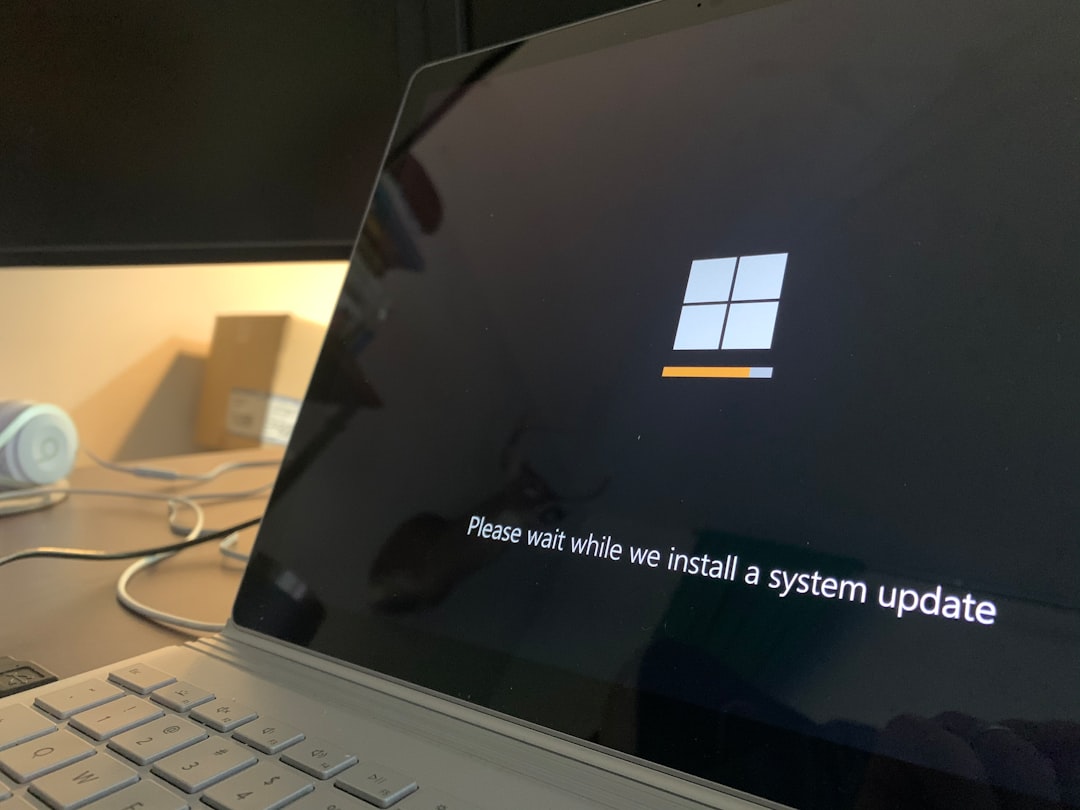
When to Suspect Driver Issues:
- The microphone appears with a warning icon in Device Manager.
- It disconnects randomly.
- Audio quality degrades after a system update.
6. Check Your Recording or Streaming Software
In many cases, the problem is not the microphone or the system—but the software being used. Applications like OBS, Zoom, Discord, or Audacity often require manual input selection.
Common Fixes Inside Software:
- Confirm Fifine K678 is selected as the input device.
- Disable other microphones within the application.
- Restart the application after plugging in the mic.
- Reset audio settings to default.
Example: In OBS Studio, navigate to Settings > Audio and manually assign the microphone under Mic/Auxiliary Audio.
If the microphone works in system tests but not in a specific app, the issue is almost certainly software configuration.
Bonus Troubleshooting Tips
If none of the above solutions resolve the issue, consider these additional checks:
- Try the microphone on a different computer to rule out hardware failure.
- Disable audio enhancements in sound settings.
- Scan for system updates.
- Check for background applications interfering with audio input.
Hardware failure is rare but possible. If the microphone does not power on or function on multiple devices, contacting customer support may be necessary.
Preventing Future Issues
Maintaining stable microphone performance requires a few best practices:
- Always eject or safely disconnect USB devices.
- Avoid sharply bending cables.
- Keep system software updated.
- Periodically review audio settings after major updates.
The Fifine K678 is designed for simplicity. In most scenarios, connectivity issues arise from system changes rather than product defects.
Frequently Asked Questions (FAQ)
1. Why is my Fifine K678 not showing up on my computer?
This usually happens due to a faulty USB connection, disabled drivers, or outdated system software. Try switching USB ports, updating drivers, and restarting your computer.
2. The microphone is detected but there is no sound. What should be checked?
Ensure it is set as the default input device, verify input levels are raised, confirm app permissions are enabled, and check that the gain knob on the microphone is turned up.
3. Does the Fifine K678 require special drivers?
No, it is a plug-and-play USB microphone. However, it depends on your operating system’s built-in audio drivers, which should be kept updated.
4. Why does my microphone sound distorted?
Distortion usually occurs when the gain is set too high or when audio enhancements are enabled. Lower the gain and disable enhancements in your system settings.
5. Can a USB hub cause the microphone to stop working?
Yes. Some USB hubs lack sufficient power delivery. Connecting the microphone directly to the computer often resolves the issue.
6. How do I know if my Fifine K678 is broken?
If the microphone does not power on and fails to work on multiple devices with different cables, there may be a hardware issue. Testing it on another computer is the best way to confirm.
When the Fifine K678 stops working, the situation may feel urgent—especially during live events or important meetings. Fortunately, most problems are linked to simple configuration or connectivity issues. By methodically working through these six quick fixes, users can restore their microphone’s performance and return to recording with minimal downtime.