Changing the camera source on your Mac might sound tricky. It’s not. In fact, it’s usually just a few clicks. Whether you’re switching from your built-in webcam to an external camera or using a virtual camera for streaming, the process is simple once you know where to look.
TLDR: To change your camera source on Mac, open the app you’re using (like Zoom or FaceTime), go to its settings, and choose your preferred camera from the video section. If your camera isn’t showing, check your system settings and permissions. For advanced setups, you may need third-party software. Most switches take less than a minute.
Let’s break it down step by step. No tech degree needed.
Table of Contents
Why Change Your Camera Source?
Your Mac usually uses the built-in FaceTime HD camera by default. It works fine. But sometimes you want better quality. Or a different angle. Or maybe you’re using:
- An external USB webcam
- A DSLR or mirrorless camera
- A virtual camera from OBS or other software
- Your iPhone as a webcam
Each of these gives you different results. Some look sharper. Some give more control. Some are just more fun.
Method 1: Change Camera in App Settings
This is the most common method. And the easiest.
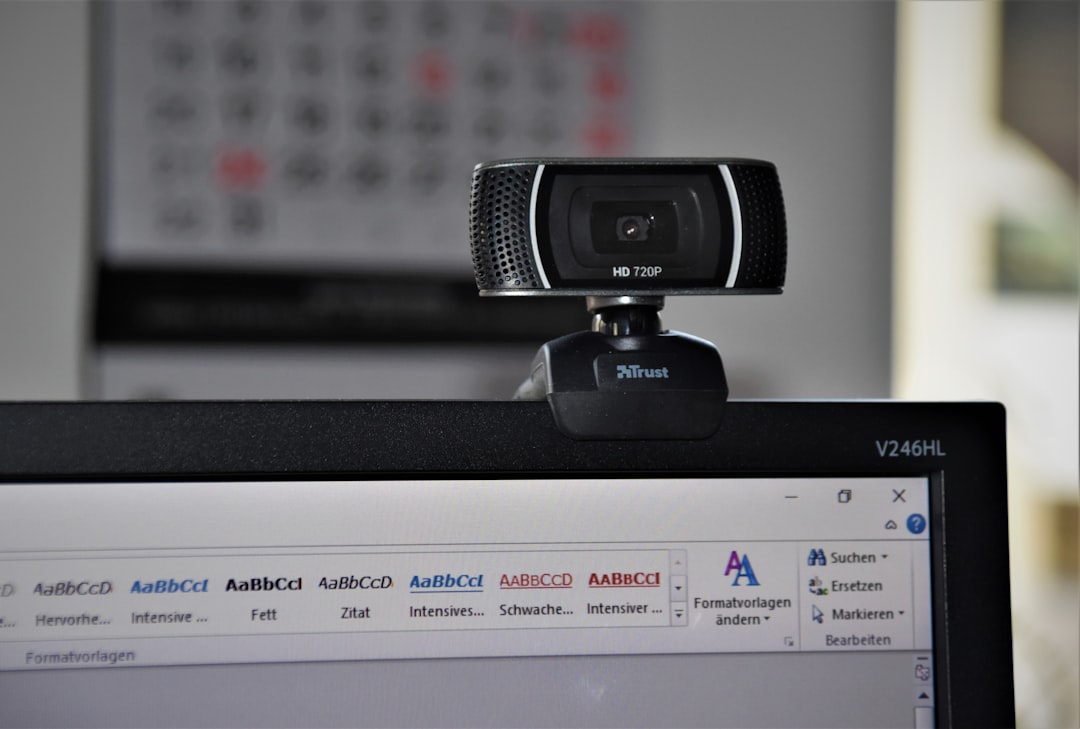
Most video apps let you choose your camera directly inside their settings.
Example: Zoom
- Open Zoom.
- Click your profile picture.
- Select Settings.
- Click Video.
- Choose your camera from the dropdown menu.
Done. Instant switch.
Example: Google Meet
- Join a meeting.
- Click the three dots at the bottom.
- Select Settings.
- Click Video.
- Choose your preferred camera.
Example: Microsoft Teams
- Open Teams.
- Click Settings.
- Select Devices.
- Pick your camera from the list.
The pattern is always similar. Open settings. Find video. Choose camera.
Method 2: Use System Settings (Camera Permissions)
Sometimes your camera doesn’t appear in the app. That’s usually a permissions issue.
Your Mac protects your privacy. Apps must ask before using your camera.
How to Check Camera Permissions
- Click the Apple menu.
- Select System Settings.
- Click Privacy & Security.
- Select Camera.
- Turn on the toggle for your app.
If the app is off, it can’t see your camera. Flip the switch. Try again.
Method 3: Switching to an External Webcam
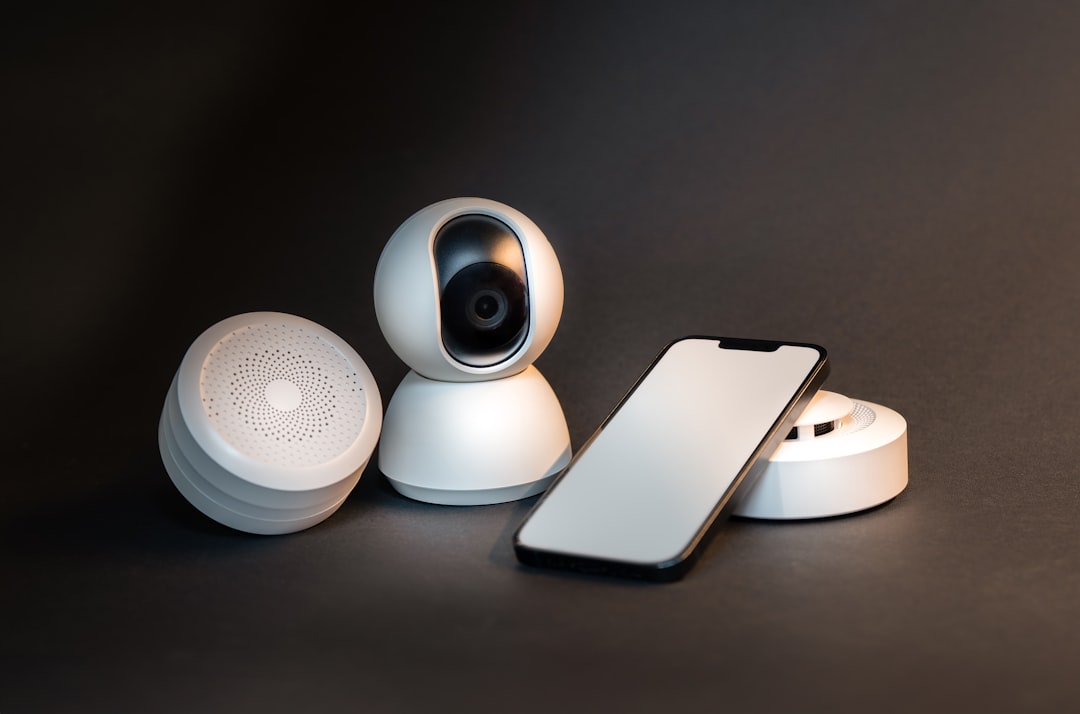
This one is simple. Plug it in.
Most USB webcams are plug-and-play. No drivers needed.
Steps:
- Connect the webcam to your Mac.
- Open your video app.
- Go to video settings.
- Select the external camera.
If it doesn’t show up, try:
- Using a different USB port
- Unplugging and plugging back in
- Restarting your Mac
That usually solves it.
Method 4: Using Your iPhone as a Camera
This is where things get cool.
If you’re using macOS Ventura or later, you can use Continuity Camera. It lets your iPhone act as your Mac’s webcam.
What You Need:
- Mac with macOS Ventura or newer
- iPhone with iOS 16 or newer
- Both devices signed into the same Apple ID
- Wi-Fi and Bluetooth enabled
How to Switch:
- Bring your iPhone near your Mac.
- Open your video app.
- Go to camera settings.
- Select your iPhone from the list.
That’s it. No cables needed.
The quality is often better than your built-in webcam. Big upgrade.
Method 5: Using DSLR or Mirrorless Cameras
Want that blurry background look? Cinematic style?
You can connect a DSLR or mirrorless camera.
You’ll usually need:
- An HDMI capture card
- A clean HDMI output
- A USB connection to your Mac
Once connected, your Mac sees it as a webcam. Then:
- Open your video app.
- Go to video settings.
- Select the capture device.
It might show up as something like “USB Video” or the capture card’s name.

Method 6: Switching to a Virtual Camera
This is popular with streamers and presenters.
A virtual camera lets you send customized video to apps. You can:
- Add overlays
- Share slides
- Use green screen effects
- Switch camera angles
OBS Studio is a common tool for this.
Basic Steps with OBS:
- Install OBS Studio.
- Add your camera as a source.
- Click Start Virtual Camera.
- Open your video app.
- Select OBS Virtual Camera.
Now your meeting shows whatever OBS is showing.
Comparison Chart: Popular Camera Source Options
| Camera Type | Ease of Use | Video Quality | Extra Equipment | Best For |
|---|---|---|---|---|
| Built-in Mac Camera | Very Easy | Good | None | Quick calls |
| USB Webcam | Easy | Very Good | USB Cable | Professional meetings |
| iPhone Continuity Camera | Easy | Excellent | Compatible devices | High quality video |
| DSLR or Mirrorless | Moderate | Outstanding | Capture card | Content creators |
| OBS Virtual Camera | Moderate | Depends on setup | Software | Streamers and teachers |
Troubleshooting Common Problems
Things not working? Don’t worry. Let’s fix it.
Problem: Camera Not Showing Up
- Check USB connection.
- Restart the app.
- Restart your Mac.
- Check Privacy & Security settings.
Problem: Wrong Camera Keeps Turning On
Some apps remember previous settings.
Go back into settings. Manually choose your preferred camera. Close and reopen the app.
Problem: Black Screen
- Close other apps using the camera.
- Unplug and reconnect the camera.
- Make sure lens cap is removed. (Yes. It happens.)
Pro Tips for a Better Camera Experience
Switching cameras is just step one. Make it look great too.
- Face a window for natural light.
- Avoid bright lights behind you.
- Raise your camera to eye level.
- Clean your lens.
Small changes make a big difference.
How Mac Chooses Default Cameras
macOS does not have a global camera selector.
Each app decides which camera to use. Usually it picks:
- The last used camera
- Or the built-in camera
That’s why changes happen inside each individual app.
If you use multiple video apps, you must change the camera in each one.
Final Thoughts
Changing your camera source on Mac is easier than most people think. It usually takes less than a minute. Open settings. Switch the dropdown. Done.
Whether you’re upgrading to a DSLR, using your iPhone, or just plugging in a better webcam, the process stays simple. The real magic is choosing the setup that fits your needs.
Keep it clean. Keep it simple. Pick the camera that makes you look your best.
Your future Zoom calls will thank you.