Personalizing a Mac begins with something simple yet visually impactful: changing the desktop background. The desktop wallpaper not only sets the tone for the entire user experience but also reflects personality, mood, and productivity preferences. Whether someone prefers a minimalist aesthetic, vibrant landscapes, or rotating dynamic wallpapers, macOS offers several easy ways to customize the background.
TLDR: Changing the desktop background on a Mac can be done through System Settings, right-clicking the desktop, or using the Photos app. Users can choose from Apple’s built-in wallpapers, solid colors, or personal images. Dynamic and automatic rotating wallpapers are also available for added customization. The process is simple and requires only a few clicks.
Table of Contents
Why Customize the Desktop Background?
The desktop is often the first thing visible when a Mac is opened. A customized wallpaper can help:
- Create a personalized workspace
- Improve mood and motivation
- Reduce visual clutter with simple backgrounds
- Showcase personal photography or artwork
macOS makes it incredibly straightforward to switch between backgrounds, whether someone wants a static image or an automatically changing display throughout the day.
Method 1: Change Desktop Background Through System Settings
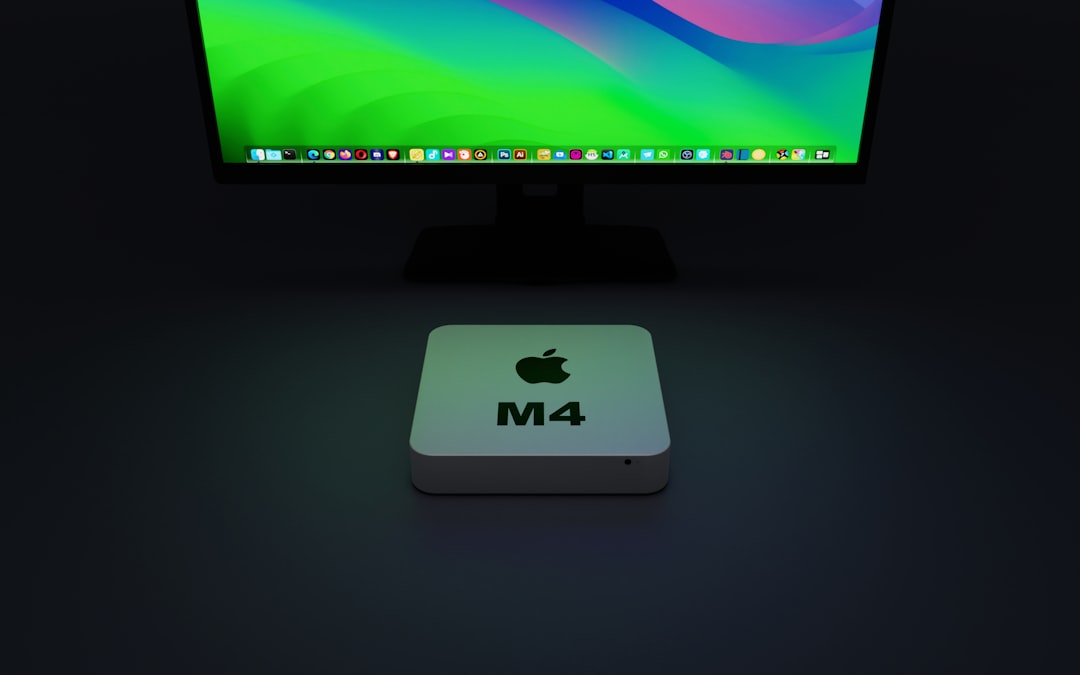
The most common way to change the desktop wallpaper is through System Settings. This method provides access to built-in wallpapers, colors, and personal folders.
- Click the Apple menu in the top-left corner of the screen.
- Select System Settings (or System Preferences on older macOS versions).
- Click on Wallpaper (or Desktop & Screen Saver).
- Browse available categories such as:
- Apple’s default wallpapers
- Dynamic wallpapers
- Solid colors
- Folders from your Photos library
- Select an image to apply it instantly.
The background changes immediately after selection, allowing users to preview options effortlessly.
Using Dynamic Wallpapers
Dynamic wallpapers automatically change appearance depending on the time of day. For example, a landscape may appear bright during the day and darker at night. To use this feature:
- Select a wallpaper labeled Dynamic
- Choose the dynamic option from the small drop-down menu on the preview thumbnail
This feature creates a subtle but elegant transition throughout the day without manual adjustments.
Method 2: Right-Click on the Desktop
For users seeking a faster method, macOS allows quick access directly from the desktop.
- Right-click (or Control-click) on an empty area of the desktop.
- Choose Change Wallpaper.
- Select the desired image from the options displayed.
This shortcut opens the wallpaper settings panel instantly, saving time compared to navigating through menus.
Method 3: Set a Personal Image as Desktop Background
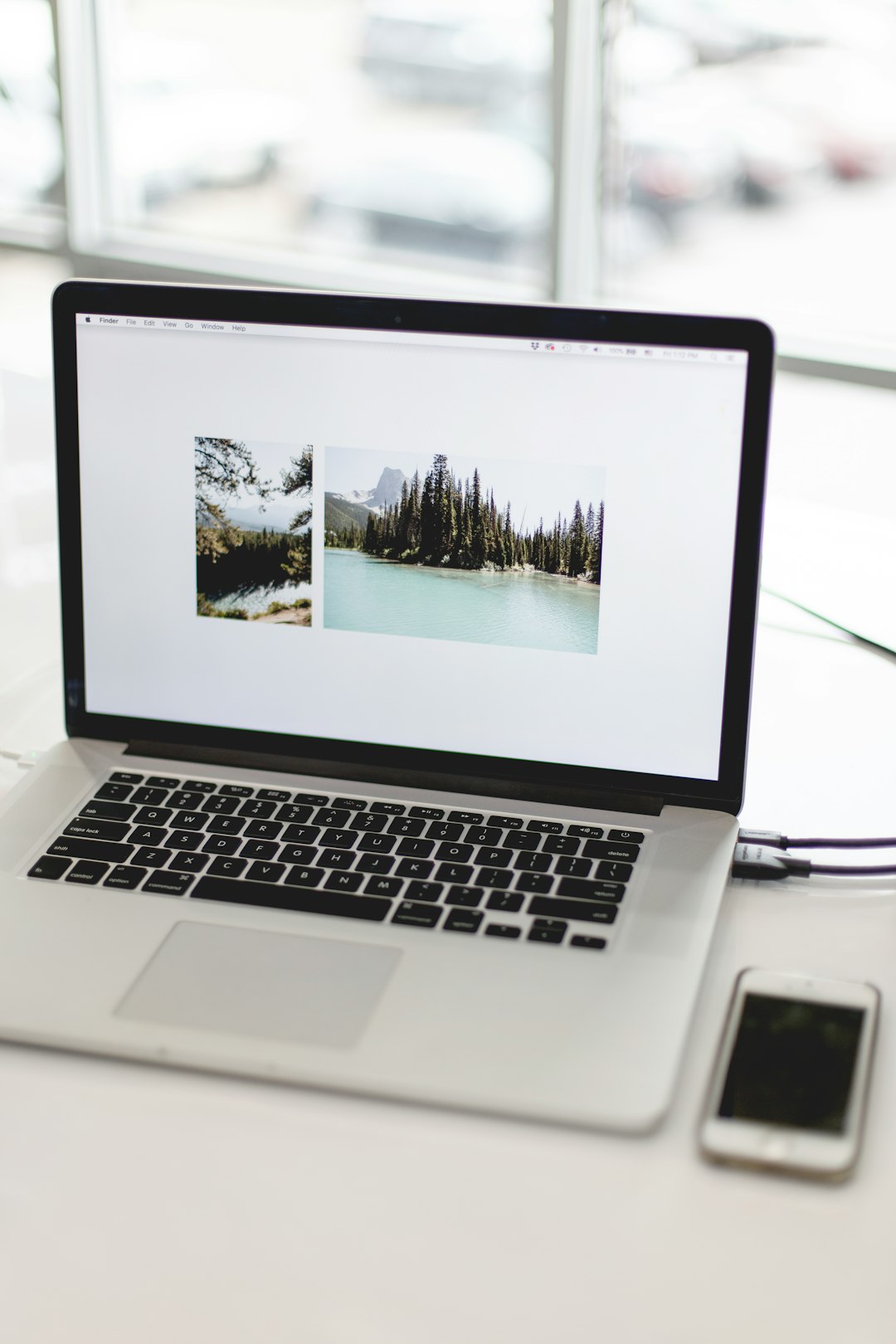
Many people prefer using personal photos instead of Apple’s default collection. macOS supports images stored locally or in the Photos app.
From Finder:
- Open Finder.
- Navigate to the folder containing the image.
- Right-click the image file.
- Select Set Desktop Picture.
The selected image becomes the background immediately.
From the Photos App:
- Open the Photos app.
- Select the desired image.
- Click the Share button.
- Choose Set Desktop Picture.
This method is particularly convenient for users who organize images within albums.
How to Rotate Wallpapers Automatically
macOS includes an automatic rotation feature for users who prefer variety.
- Open System Settings.
- Go to Wallpaper.
- Select a folder (such as Pictures).
- Enable the option Rotate or Change Picture.
- Choose a frequency:
- Every 5 seconds
- Every minute
- Every 5 minutes
- Every hour
- Daily
- When logging in
- When waking from sleep
Users can even shuffle images randomly to avoid predictable patterns.
Using Solid Colors as Background
Minimalist users may prefer solid colors instead of images. This can reduce distractions and improve focus.
- Open System Settings > Wallpaper
- Scroll to the Colors section
- Select a pre-set color or click Custom Color
Solid backgrounds often consume fewer system resources and provide a cleaner aesthetic.
Adjusting Image Fit and Display Options
Sometimes the selected wallpaper does not fit the screen perfectly. macOS allows multiple display options:
- Fill Screen – Stretches image to fill display
- Fit to Screen – Adjusts image proportionally
- Stretch to Fill Screen – May distort aspect ratio
- Center – Displays image without resizing
- Tile – Repeats smaller images
These options appear when selecting custom images and can be adjusted from the wallpaper settings panel.
Setting Different Wallpapers for Multiple Displays
Many Mac users work with dual monitors. macOS allows independent wallpaper settings for each screen.
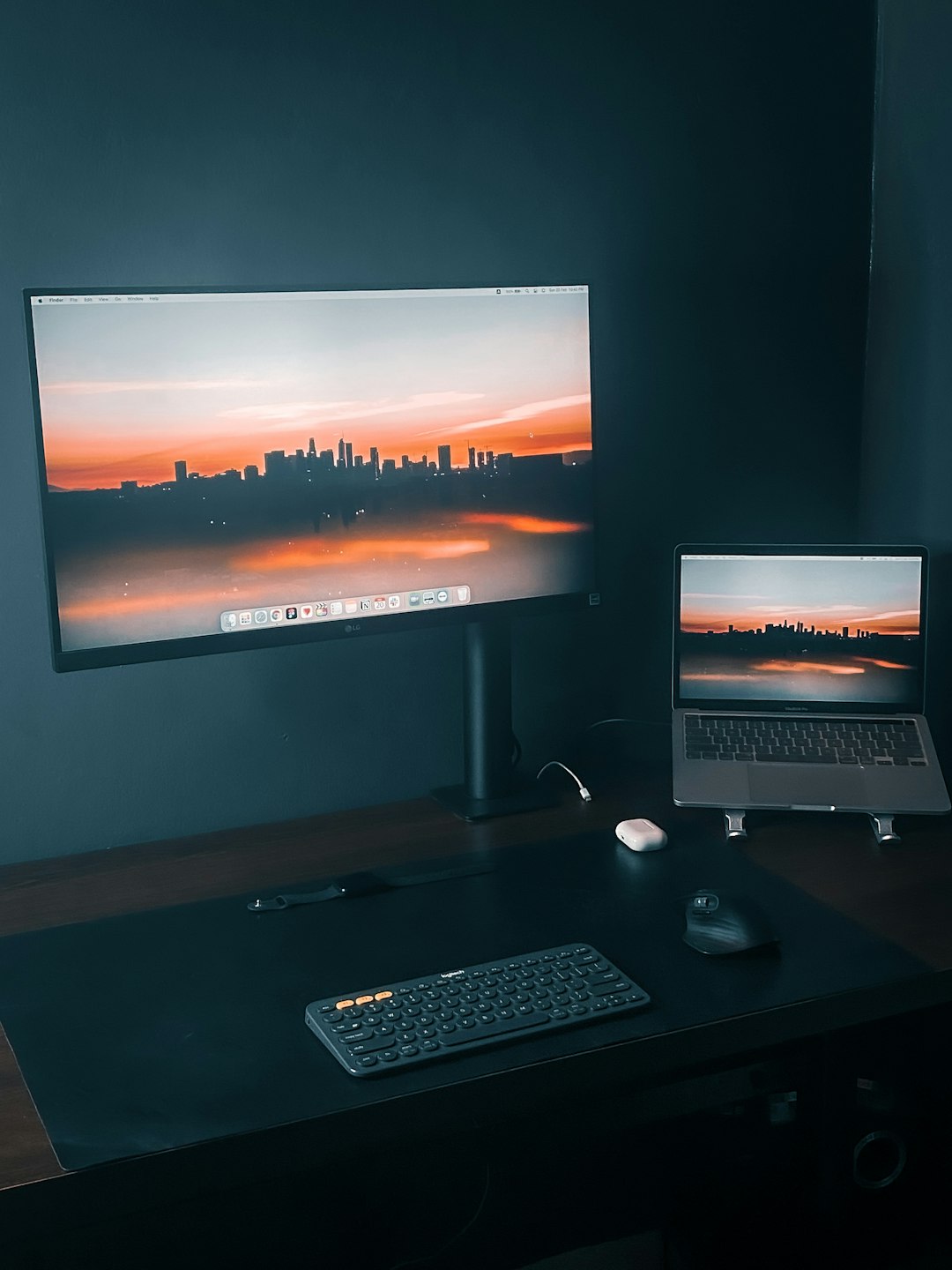
- Connect the external display.
- Open System Settings > Wallpaper.
- Click on each display thumbnail separately.
- Select a different wallpaper for each screen.
This feature helps visually separate workspaces and improve organization.
Troubleshooting Common Issues
Wallpaper Keeps Resetting
If the wallpaper reverts after restarting:
- Ensure the image file has not been deleted or moved
- Check that the drive containing the image is connected
- Disable third-party customization apps that may override settings
Background Appears Blurry
Blurriness often occurs when the image resolution is too low. For best results:
- Use images that match or exceed the Mac’s display resolution
- Avoid small images that require scaling
Cannot Access Wallpaper Settings
If the Wallpaper option is missing:
- Update macOS to the latest version
- Restart the Mac
- Check Screen Time restrictions
Comparison of Wallpaper Methods
| Method | Ease of Use | Best For | Customization Level |
|---|---|---|---|
| System Settings | Very Easy | Access to built-in and dynamic wallpapers | High |
| Right-Click Desktop | Extremely Easy | Quick changes | Moderate |
| Finder Image | Easy | Personal pictures | High |
| Photos App | Easy | Organized photo libraries | High |
Tips for Choosing the Perfect Desktop Background
- Match resolution to the screen size for crisp visuals.
- Keep icons visible by avoiding overly busy images.
- Consider dark mode compatibility if using macOS dark mode.
- Rotate images periodically to keep the workspace fresh.
A well-selected desktop background can subtly improve the entire computing experience.
Frequently Asked Questions (FAQ)
1. How do I change the desktop background on an older version of macOS?
On older versions, open System Preferences from the Apple menu and select Desktop & Screen Saver. The process is nearly identical to newer macOS versions.
2. Can I use a live wallpaper on Mac?
macOS supports Dynamic wallpapers but does not natively support animated live wallpapers. Third-party applications are required for animated backgrounds.
3. Why does my background change automatically?
The Rotate or Change Picture setting may be enabled. Disable it in Wallpaper settings if a static image is preferred.
4. Can I set a different wallpaper for each virtual desktop?
Yes. When using multiple Spaces, right-click each desktop and choose Change Wallpaper while on that specific Space.
5. What image size works best for Mac wallpapers?
The best size matches the screen resolution. For example, a 2560×1600 image works well for a compatible Retina display.
6. Does changing the wallpaper affect performance?
Generally, no. However, very large dynamic or frequently rotating wallpapers may use slightly more system resources.
7. How can I revert to the default Mac wallpaper?
Open System Settings > Wallpaper and select one of Apple’s default wallpapers from the built-in categories.
Changing the desktop background on a Mac is a quick yet powerful way to personalize the computing experience. With multiple methods available—from System Settings to right-click shortcuts and automatic rotations—users can tailor their workspace to match their style, workflow, and mood in just moments.