Hard disk drives (HDDs) are still widely used due to their reliability and cost-effectiveness. However, users may sometimes encounter unusual issues — for instance, the drive may read files without any hiccups but fail when copying those same files. This problem can be incredibly frustrating, especially when trying to back up important data or transfer files to another system.
Table of Contents
TL;DR
If your HDD can read files but fails during copying, it may be a sign of bad sectors, file system errors, or hardware degradation. Try connecting the drive to another port, run CHKDSK or similar repair tools, and use file recovery software if needed. Always back up data as soon as symptoms appear. Ignoring these issues can lead to permanent data loss.
Understanding the Problem
When a hard drive reads files but fails to copy them, it generally indicates that the drive’s read-only operations are intact, but write operations or sustained data access are triggering errors. The issue could stem from:
- Bad sectors on the drive preventing successful reads beyond certain locations.
- File system corruption, which may show up during copying due to metadata inconsistencies.
- Insufficient power or cable problems that only affect sustained throughput.
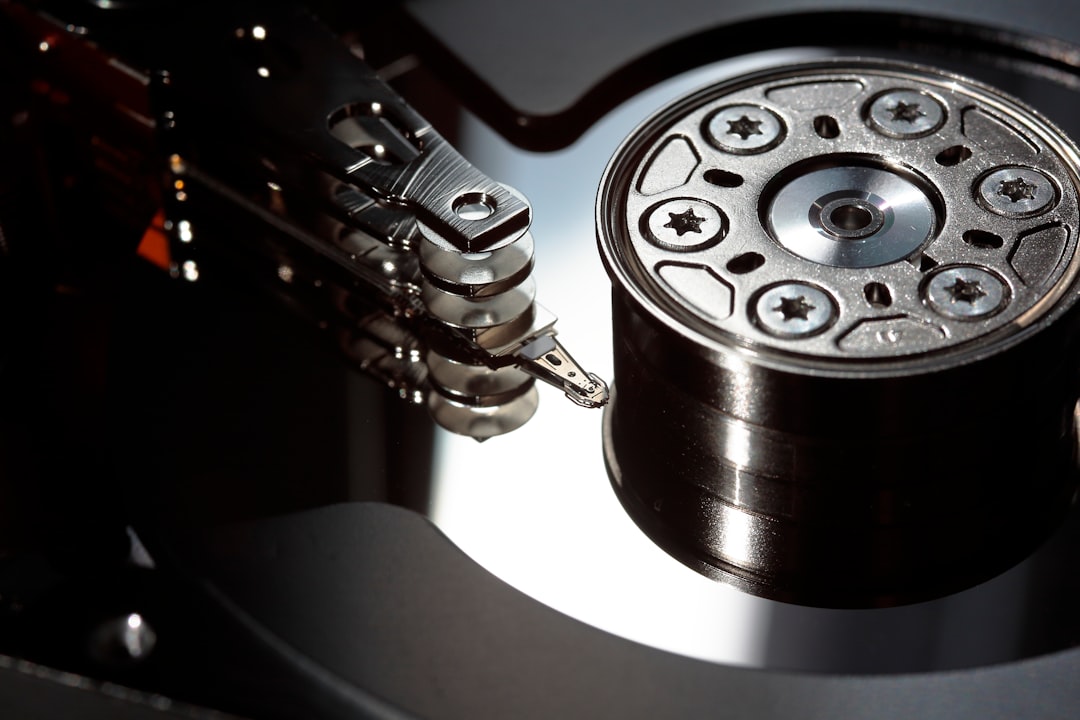
- Physical degradation of the drive’s internal components.
Step-by-Step Solutions
1. Try Basic Checks First
Before diving deep into diagnostics, perform a few quick fixes that may resolve the problem.
- Reconnect the Drive: Unplug the drive and connect it to another USB port or SATA channel.
- Try a Different Computer: Occasionally, the host machine could be causing the issue.
- Use a Different Cable: Replace the data and/or power cables if applicable.
These simple steps can rule out many of the superficial causes.
2. Run CHKDSK or Disk Utility
One of the most effective tools available on Windows is the built-in CHKDSK utility:
chkdsk E: /f /r /xThis command checks the drive for errors (/f), locates bad sectors and recovers readable data (/r), and forces the volume to dismount if in use (/x).
On macOS, users can utilize Disk Utility and run First Aid on the drive to check and repair errors.
3. Use SMART Analysis Tools
Self-Monitoring, Analysis and Reporting Technology (SMART) data monitors the health of your HDD. Use free tools such as:
- CrystalDiskInfo for Windows
- GSmartControl for cross-platform checks
Look for warning signs such as an increasing reallocated sector count or read error rate.
4. Recover Important Files
If the copying fails consistently, consider file recovery tools to extract critical data before attempting more invasive repairs. Popular tools include:
- Recuva: Great for Windows users needing an easy-to-use interface.
- TestDisk and PhotoRec: Excellent open-source tools for deep data recovery.
- EaseUS Data Recovery: A commercial option with a guided recovery process.
These tools can help retrieve files that standard copying methods fail to handle due to corruption or bad sectors.
5. Clone the Drive If Possible
Before deterioration worsens, cloning the drive to a healthy one is highly recommended. Using tools like:
- Macrium Reflect
- Clonezilla
- ddrescue (Linux-based)
you can make a full image of the drive, bypassing problematic sectors when possible, to preserve what can still be read.
6. Perform a Full Format (As Last Resort)
If data recovery is not a concern or has already been completed, perform a full (not quick) format. This will allow the system to map out bad sectors and refresh the file system. In Windows, be sure to uncheck “Quick Format” when formatting from File Explorer or use:
format E: /fs:NTFS /p:1This command performs one pass of zero-writing over sectors, helping pinpoint failing hardware areas.
Preventive Measures for the Future
To avoid similar issues down the line, users should implement prevention strategies:
- Regular Backups: Use automated or cloud-based tools to keep backups current.
- Monitor Drive Health: Use SMART tools monthly.
- Avoid Shocks and Surges: HDDs are sensitive to movement and voltage spikes.
- Plan for Drive Retirement: Replace old drives (5+ years) proactively.
When to Replace the Drive
If the copying failure persists across all files and recovery tools find numerous unreadable sectors, it’s best to consider the drive no longer reliable. Any drive that fails diagnostics or exhibits extensive SMART alerts is a candidate for immediate replacement.
HDDs are mechanical devices and have limited lifespans. Using them beyond their reliability window introduces risk.
FAQs
- Q: Why can I open files but not copy them from my hard drive?
A: This suggests that the files are readable with minimal load, but some sectors may be degraded, causing copying (which reads data more sequentially and in bulk) to fail. - Q: Can software fix a drive that won’t copy files?
A: It depends on the cause. Software like CHKDSK or recovery utilities can fix logical errors or bypass bad sectors, but hardware degradation requires physical solutions or replacement. - Q: Is my data at risk?
A: If you experience copying errors, your data may be on sectors that are beginning to fail. Back up immediately before attempting more drastic repairs. - Q: How can I prevent this from happening again?
A: Regularly monitor drive health with SMART tools, avoid physical shocks to the drive, and perform weekly or monthly backups of important data. - Q: Should I use a recovery service?
A: If the data is critical and you cannot access it with software tools, professional recovery services may be the only option. Be aware that they can be costly.
Dealing with an HDD that fails when copying files but not reading can be alarming — however, it’s possible to diagnose, recover, and prevent data loss with the right approach and tools. Being proactive and understanding the signs of hardware distress can make the difference between salvaging data and dealing with permanent loss.