In the vast and ever-evolving world of computer peripherals, convenience and efficiency are paramount. If you’ve ever juggled multiple wireless devices and their separate USB receivers, you know how quickly USB ports can get cluttered and unreliable. That’s where Logitech’s Unifying Software comes into play — a sleek, user-friendly solution that syncs several compatible devices using just one tiny receiver.
Table of Contents
TL;DR (Too Long; Didn’t Read):
Logitech Unifying Software is a utility that allows users to connect up to six compatible Logitech wireless devices—such as mice, keyboards, and trackpads—to a single Unifying Receiver. This tiny USB dongle eliminates the need to deal with multiple receivers, reducing clutter and improving organization. The software offers an intuitive interface to pair, unpair, and manage connected devices with ease. It’s ideal for both casual users and professionals seeking a seamless and streamlined workspace setup.
What Is the Logitech Unifying Receiver?
The Logitech Unifying Receiver is a small USB dongle, roughly the size of a fingernail, designed to connect multiple Logitech wireless peripherals to a computer using 2.4 GHz wireless technology. Instead of needing a separate receiver for each device, a single Unifying Receiver communicates with multiple supported devices simultaneously.
Here’s what sets it apart:
- Size: Extremely compact and can remain plugged into a laptop USB port without getting in the way.
- Efficiency: Connects up to six devices using one receiver.
- Security: Utilizes 128-bit AES encryption between the devices and receiver.
- Compatibility: Works with a wide range of Logitech products that sport the orange Unifying logo.
Understanding the Unifying Software
While the Unifying Receiver is the hardware component, the Logitech Unifying Software serves as the bridge that binds your Logitech wireless devices to your receiver. This intuitive application lets you pair, unpair, and manage your devices through a clean, guided user interface.
The software is available for both Windows and macOS and can be downloaded directly from Logitech’s official support website. Once installed, it scans for compatible receivers and provides step-by-step instructions for syncing devices.
Key Features of the Unifying Software
- Device Pairing: Quickly connect a new keyboard, mouse, or other peripheral in minutes.
- Device Unpairing: Remove an older device from the pairing list to make room for a new one.
- Battery Monitoring: Some versions include basic battery status for certain devices.
- Cross-Platform Support: Available for both PC and Mac users.
How It Works
Using the Unifying Software is delightfully simple. Here’s a breakdown of the process:
- Download and install the Logitech Unifying Software from the official website.
- Plug your Unifying Receiver into an available USB port on your computer.
- Launch the Unifying Software. It will detect your receiver automatically.
- Click “Pair a New Device” and turn on the wireless peripheral you’d like to connect.
- Follow the on-screen prompts to finish the setup.
The software will confirm once pairing is successful, after which your device becomes immediately functional. Since the technology works on a 2.4 GHz frequency, the response time is rapid, with minimal latency, which is especially valuable for gaming or high-speed typing tasks.

Supported Devices
Before you get too excited, it’s worth confirming that your Logitech devices are compatible with the Unifying Receiver. Not every Logitech product supports Unifying technology — only those with the recognizable orange ‘star’ logo do. Common supported devices include:
- Logitech MX Master and MX Anywhere mouse series
- K series wireless keyboards like the K270, K780, and K850
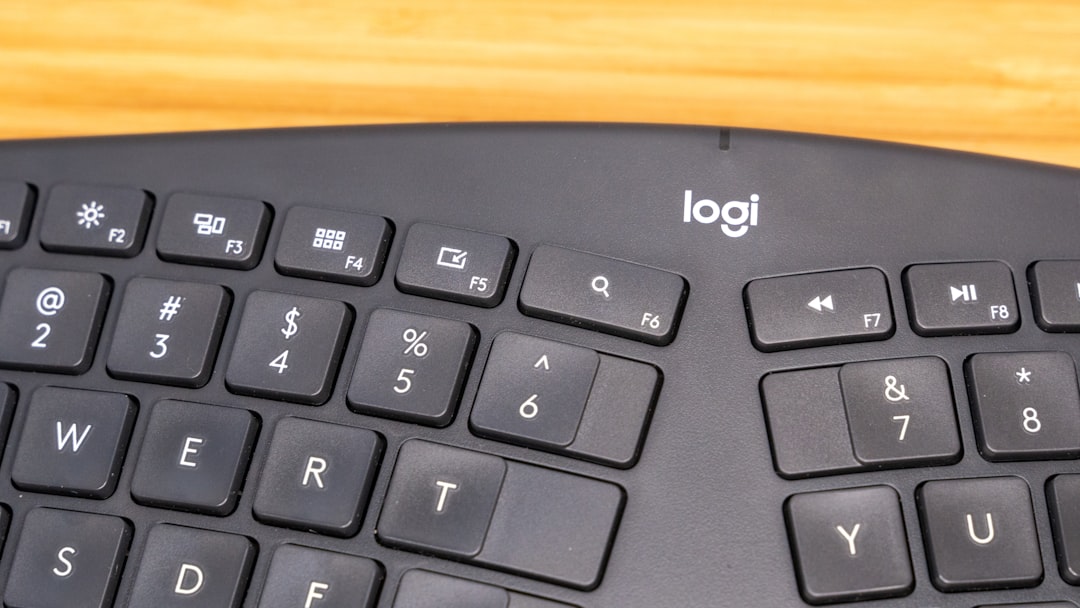
- ERGOs and trackballs like the M570
You can find the orange Unifying logo either on the device itself or its packaging. If you’re unsure, Logitech provides an online compatibility checker tool that matches model numbers to compatible receiver types.
Advantages of the Unifying System
This kind of ecosystem offers many helpful benefits. Here are some of the reasons why people love using Logitech Unifying Software and Receivers:
1. Fewer USB Ports Used
Since you can connect up to six peripherals with one receiver, your limited number of USB ports becomes much less of an issue—crucial for ultrabooks and other devices with only 2-3 available slots.
2. Portability
Travelers and remote workers benefit from carrying fewer components. Rather than multiple dongles, you just need one.
3. Reduced Clutter
If you’re managing a workstation or home office setup, minimizing tangled wires and redundant receivers contributes to a much neater workspace.
4. Stability and Range
The 2.4 GHz wireless connection offers solid performance with a range up to 10 meters (about 33 feet), perfect for presentations and more flexible working distances.
Limitations and Caveats
As elegant as it is, the Unifying Software isn’t without its quirks. Some users have reported minor limitations:
- No Bluetooth Support: Devices using Bluetooth cannot be connected using the Unifying Receiver—they are completely separate connectivity standards.
- Non-Unifying Devices: As mentioned, devices without the Unifying logo cannot be paired, even if they’re wireless and made by Logitech.
- Security Vulnerabilities: Older versions of the software had known security issues, such as the “MouseJack” vulnerability, although Logitech has since released patches to fix these.
Bonus Tip: Pairing Multiple Devices Across Computers
If you own more than one computer—say a home PC and a work laptop—you might be tempted to use one Unifying Receiver between those two systems. While you technically can’t switch a receiver between devices on the fly, there’s a workaround using Logitech Flow, an additional piece of software that works alongside Unifying technology. With Flow, you can control multiple computers with one keyboard and mouse by switching across screens seamlessly, even copy-pasting content between devices.
This added layer of functionality is perfect for multitaskers and professionals working across platforms or operating systems.
How to Tell If a Device Is Already Paired
One of the subtle yet thoughtful features of the Unifying Software is its ability to show which devices are already paired with your receiver.
During the pairing process, the software will display any paired devices, and some versions even include helpful visual icons. If too many devices are listed and you try to add another, the software will prompt you to remove one first.
Final Thoughts
The Logitech Unifying Software is a shining example of thoughtful engineering—solving a common problem with simplicity and elegance. It helps tech enthusiasts and everyday users alike make the most of their workspace, creating more room on desks and fewer headaches during setups and switches.
Whether you’re connecting just a mouse and a keyboard or managing a whole suite of Logitech wireless gadgets, the Unifying Software adds serious value and peace of mind. For users invested in the Logitech ecosystem, this isn’t just a nice-to-have — it’s an essential productivity tool.