Few Windows error messages are as frustrating as seeing a pop-up that says “The action can’t be completed because the file is open in another program.” It often appears when trying to delete, move, or rename a file or folder, halting productivity and leaving users wondering which program is responsible. This issue can affect documents, images, videos, system files, and even entire folders. Fortunately, the problem is usually fixable with a series of systematic troubleshooting steps.
TL;DR: The “file is open in another program” error happens when Windows believes a file is still in use. Closing related apps, restarting File Explorer, using Task Manager, or rebooting the system often resolves it. If not, advanced steps like Safe Mode, Command Prompt, or checking for disk errors can help unlock the file. Most cases are minor and solvable without reinstalling Windows.
Table of Contents
Why This Error Happens
Before diving into solutions, it helps to understand why the error occurs. Windows prevents files from being modified or deleted while they are actively in use. This protects data from corruption but can sometimes be overly cautious.
Common reasons include:
- The file is genuinely open in a program running in the background.
- File Explorer hasn’t released the file handle.
- A background process such as antivirus software is scanning the file.
- A network location is still accessing the file.
- System glitches or temporary lock errors.
In some cases, the file is not visibly open, yet Windows still reports that it is in use. That is when deeper troubleshooting becomes necessary.
Step 1: Close the Obvious Programs
The simplest fix is often overlooked. If attempting to delete a document, ensure Microsoft Word, a PDF reader, media player, image editor, or any related program is fully closed.
It is important to:
- Close the document itself.
- Exit the entire application.
- Check the system tray for minimized programs.
If uncertain which program may be involved, closing all open applications is a quick test.
Step 2: Restart Windows File Explorer
Sometimes the issue lies not with a third-party program but with Windows File Explorer itself.
To restart it:
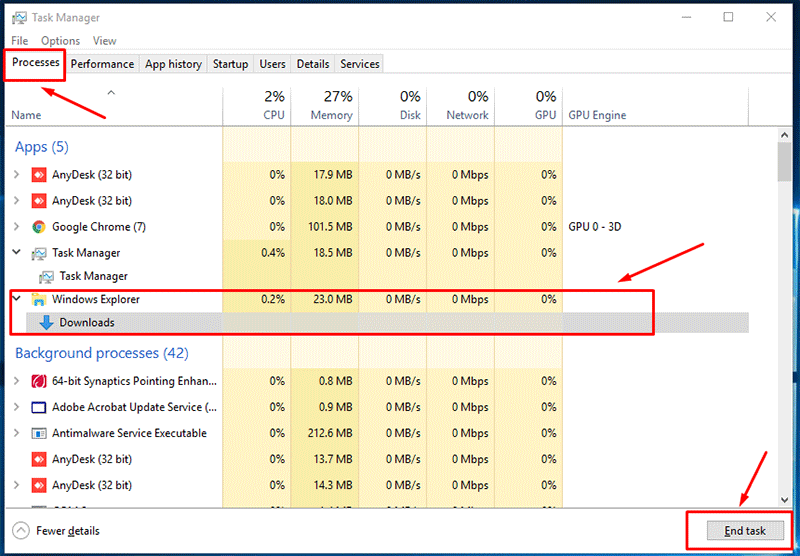
- Press Ctrl + Shift + Esc to open Task Manager.
- Scroll down to Windows Explorer.
- Select it and click Restart.
This refreshes the desktop and file management system without requiring a full reboot.
Step 3: Use Task Manager to Identify the Locking Program
If restarting Explorer does not work, the next step is identifying the process holding the file open.
In Task Manager:
- Switch to the Processes tab.
- Look for suspicious or relevant programs (such as cloud storage or antivirus software).
- Select the process and click End Task.
Background services like cloud sync tools (e.g., syncing a folder) are frequent culprits. Ending the task temporarily releases the file.
Step 4: Restart the Computer
When in doubt, rebooting works wonders. A restart:
- Closes all background processes.
- Clears temporary system locks.
- Resets memory usage.
After rebooting, try deleting or moving the file before reopening any other programs.
Step 5: Check for Hidden Background Services
Some locks are less obvious. Antivirus software, backup tools, and indexing services frequently scan files in the background.
To test this:
- Temporarily disable the antivirus (if safe to do so).
- Pause cloud syncing services.
- Stop backup applications.
If the file can be modified afterward, the background tool was responsible.
Step 6: Use Resource Monitor for Advanced Identification
For users needing precise control, the built-in Resource Monitor can pinpoint the exact process using a file.
- Open Task Manager.
- Go to the Performance tab.
- Click Open Resource Monitor.
- Switch to the CPU tab.
- Use the search field under Associated Handles.
Typing the file name may reveal which process is locking it. The process can then be ended from Task Manager.
Step 7: Boot Into Safe Mode
If the file still cannot be modified, booting into Safe Mode may help. Safe Mode starts Windows with minimal drivers and services, preventing most third-party programs from running.
In Safe Mode:
- Navigate to the file location.
- Attempt deletion or renaming.
If successful, a non-essential startup program was likely the cause.
Step 8: Use Command Prompt to Force Delete
Sometimes, bypassing File Explorer entirely works.
To force delete a file:
- Open Command Prompt as Administrator.
- Navigate to the file directory using the cd command.
- Use the command:
del filename.ext
For folders, the command may look like:
rmdir /s /q foldername
This method avoids Explorer-related conflicts.
Step 9: Check Disk for Errors
Occasionally, file locks result from disk errors or corruption.
To check the disk:
- Open Command Prompt as Administrator.
- Type:
chkdsk C: /f
Replace C: with the correct drive letter. After scanning and repairing errors, the locked file may become accessible.
Step 10: Inspect Network File Usage
In business or shared environments, another user may be accessing the file over the network. Windows may prevent changes while another session is active.
Check with other users or review shared folder access. Disconnecting the network temporarily can confirm whether the lock originates externally.

Preventing the Error in the Future
While not all cases are avoidable, certain habits reduce occurrences:
- Properly close applications before shutting down.
- Avoid force shutting down your PC.
- Keep Windows updated to fix bugs.
- Maintain disk health with regular scans.
- Monitor startup programs to reduce background conflicts.
Periodic system restarts also help clear accumulated locks and memory allocation issues.
When to Be Concerned
In rare cases, persistent file lock errors could signal:
- Malware actively using the file.
- File system corruption.
- Failing storage hardware.
If multiple files become inaccessible, performance slows, or crashes occur, further diagnostics may be necessary.
Conclusion
The “The action can’t be completed because the file is open” error can interrupt workflow, but it is rarely catastrophic. In most instances, the problem stems from a background process or temporary system lock that can be easily resolved through restarting Explorer, closing programs, or rebooting.
Advanced tools like Resource Monitor, Safe Mode, and Command Prompt provide additional control when simple fixes fail. By understanding how Windows handles file usage and applying structured troubleshooting, users can regain control of stubborn files quickly and safely.
FAQ
Why does Windows say a file is open when it is not?
Windows may still detect a background process or service using the file. Even if the main program window is closed, the process may still be running.
Is it safe to end tasks in Task Manager?
Ending non-system tasks is generally safe. However, avoid ending critical system processes, as doing so may cause instability or require a restart.
Will restarting always fix the issue?
Restarting resolves most temporary locks. If the issue persists after rebooting, deeper system or disk problems may be involved.
Can antivirus software cause file lock errors?
Yes. Antivirus programs may scan or monitor files, temporarily preventing access until the scan completes.
What if the file is on an external drive?
Ensure the drive is not being accessed by another program and safely eject it before disconnecting. Running a disk check on the external drive may also help.
Are file lock errors a sign of malware?
Not usually. However, if the behavior is frequent or accompanied by unusual system activity, running a malware scan is recommended.
Does Safe Mode delete files permanently?
Yes. Files deleted in Safe Mode are removed just like in normal mode. However, the simplified environment makes it easier to remove locked files.