Your Ubuntu screen should feel calm and steady. Not like a disco party from 2003. If your display is blinking, flashing, or flickering, it can be super annoying. The good news? Most screen flicker issues are easy to fix. You just need the right steps. Let’s break it down in a fun and simple way.
TLDR: Screen flickering in Ubuntu is usually caused by graphics drivers, wrong display settings, or refresh rate problems. Updating or switching drivers often fixes it fast. Adjusting resolution, refresh rate, or disabling certain features can also help. In most cases, you do not need to reinstall Ubuntu.
Table of Contents
What Does Screen Flickering Look Like?
Screen flickering can show up in different ways:
- The screen blinks every few seconds.
- Parts of the screen flash black.
- The brightness changes randomly.
- The display tears when you move windows.
- It only happens after login.
Sometimes it happens only on external monitors. Sometimes only on laptops. The cause depends on your setup.
Common Causes of Ubuntu Screen Flickering
Let’s look at the usual suspects.
1. Graphics Driver Problems
This is the most common reason. Ubuntu uses open-source drivers by default. They work well most of the time. But not always.
If you use:
- NVIDIA GPU – You may need proprietary drivers.
- AMD GPU – Usually works fine, but older cards can struggle.
- Intel integrated graphics – Rarely problematic, but still possible.
A broken or outdated driver can cause blinking or constant flashing.
2. Wrong Refresh Rate
Every monitor has a refresh rate. Like 60Hz, 75Hz, 144Hz, or more.
If Ubuntu picks the wrong one, your screen may flicker. Especially on external monitors.
3. Wayland vs Xorg
Ubuntu uses Wayland by default in newer versions. But some GPUs behave better with Xorg.
If flickering started after an update, this might be the reason.
4. Display Scaling Issues
Fractional scaling can cause glitches. Especially on high-DPI displays.
Scaling like 125% or 150% sometimes triggers blinking.
5. Faulty Cable or Monitor
Sometimes it is not Ubuntu at all.
- Loose HDMI cable?
- Old DisplayPort cable?
- Cheap adapter?
Hardware issues can look like software problems.
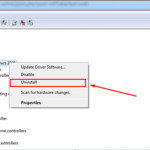
Fix 1: Update Your Graphics Drivers
This should be your first move.
Open Software & Updates.
Go to the Additional Drivers tab.
If you see proprietary drivers available, try installing the recommended one.
For NVIDIA users, this often fixes flickering immediately.
After installing:
- Restart your computer.
- Check if flickering stops.
Tip: If flickering started after installing a new driver, try switching back to a different version.
Fix 2: Adjust Refresh Rate
This is simple but powerful.
Go to:
Settings → Displays
Under your monitor, check the Refresh Rate.
If it is set to something unusual, change it to:
- 60Hz (safe default)
- Or your monitor’s official supported rate
Apply changes and test.
High refresh gaming monitors sometimes default to unstable settings.
Fix 3: Switch Between Wayland and Xorg
This sounds technical. But it is easy.
On the login screen:
- Click your username.
- Click the small gear icon in the corner.
- Choose Ubuntu on Xorg.
- Log in.
If you are already using Xorg, try switching back to regular Ubuntu (Wayland).
Many NVIDIA problems disappear when using Xorg.
Fix 4: Disable Fractional Scaling
Fractional scaling looks great. But can cause flicker.
Go to:
Settings → Displays
If scaling is set to 125% or 150%, try:
- 100%
- 200%
These full numbers are more stable.
Log out and back in after changing.
Fix 5: Disable Compositor Tweaks (Advanced but Easy)
If you use GNOME tweaks or custom extensions, one of them may be the problem.
Try:
- Disabling GNOME extensions one by one.
- Restarting GNOME (Alt + F2, type r, press Enter — Xorg only).
If flickering stops, you found your culprit.
Fix 6: Try a Simple Kernel Update
Sometimes the Linux kernel is the issue.
Run:
sudo apt update
sudo apt upgrade
Restart.
New kernels improve GPU support often.
Fix 7: Check Cables and Hardware
Do not skip this step.
- Change HDMI cable.
- Try another port.
- Test another monitor.
- Remove adapters.
If flickering disappears, it was hardware.

Special Case: NVIDIA Tearing and Flickering
NVIDIA users sometimes see screen tearing or flicker during movement.
To help:
- Open NVIDIA X Server Settings.
- Go to X Server Display Configuration.
- Enable Force Full Composition Pipeline.
- Save to X configuration file.
This smooths out rendering.
Reboot to confirm.
Special Case: Laptop Brightness Flickering
If brightness keeps changing automatically, it may be:
- Adaptive brightness.
- Power saving features.
- Intel panel self refresh.
You can try adding a kernel parameter:
Edit:
sudo nano /etc/default/grub
Add inside the GRUB line:
i915.enable_psr=0
Then run:
sudo update-grub
Restart.
This often fixes Intel laptop flicker.
Does Reinstalling Ubuntu Help?
Usually, no.
Reinstalling resets drivers and settings. But the same driver may still install again.
Only reinstall if:
- Your system is heavily broken.
- You experimented with too many manual tweaks.
In most cases, driver switching is enough.
Quick Troubleshooting Checklist
If you want a fast plan, follow this order:
- Update Ubuntu.
- Install recommended proprietary drivers.
- Adjust refresh rate.
- Switch to Xorg.
- Disable fractional scaling.
- Check cables.
Test after each step. Do not change everything at once.
How to Prevent Future Flickering
Here are some smart habits:
- Keep your system updated.
- Avoid random third-party driver downloads.
- Use good quality cables.
- Do not mix too many display adapters.
- Reboot after major updates.
Simple habits. Fewer problems.
When to Worry
Most flickering is software.
But watch out if:
- Screen flickers even in BIOS.
- It flickers before Ubuntu loads.
- Other operating systems also flicker.
This may mean GPU or monitor hardware failure.
In that case, test hardware separately.
Final Thoughts
Ubuntu screen flickering looks scary. But it is usually simple.
Drivers. Refresh rate. Scaling. Wayland. Cables.
That is your checklist.
Most users fix it in under 10 minutes. No reinstall needed. No panic required.
Take it step by step. Test one solution at a time. Your screen should go back to being calm and stable.
And once it does? Enjoy your smooth Ubuntu experience. Without the unwanted light show.