Photoshop is powerful. Scripts make it even more powerful. But sometimes, things break. You click your script. Nothing happens. Or worse, you get an error saying Photoshop can’t process open images. Annoying, right? Don’t worry. This guide will help you fix it fast and pain-free.
TL;DR: If Photoshop scripts can’t process open images, the problem is usually image mode, file format, permissions, or script compatibility. Check that your image is in RGB mode, 8-bit, and properly unlocked. Make sure Photoshop is allowed to access files and your script matches your version. Most fixes take less than five minutes.
Let’s break this down in a simple way.
Table of Contents
Why Photoshop Scripts Fail
Photoshop scripts are like mini programs. They follow instructions step by step. But they are strict. If something is slightly off, they stop working.
Common reasons include:
- Wrong color mode
- Wrong bit depth
- Locked background layer
- Unsupported file format
- Permission issues
- Outdated script
- Photoshop update conflicts
The good news? These are all fixable.
1. Check the Image Color Mode
This is the number one cause.
Many scripts are written to work only in RGB mode. If your image is in CMYK, Grayscale, or Lab Color, the script may fail.
How to check:
- Click Image in the top menu
- Hover over Mode
- See what is selected
If it’s not RGB, click RGB Color.
That’s it. Try the script again.
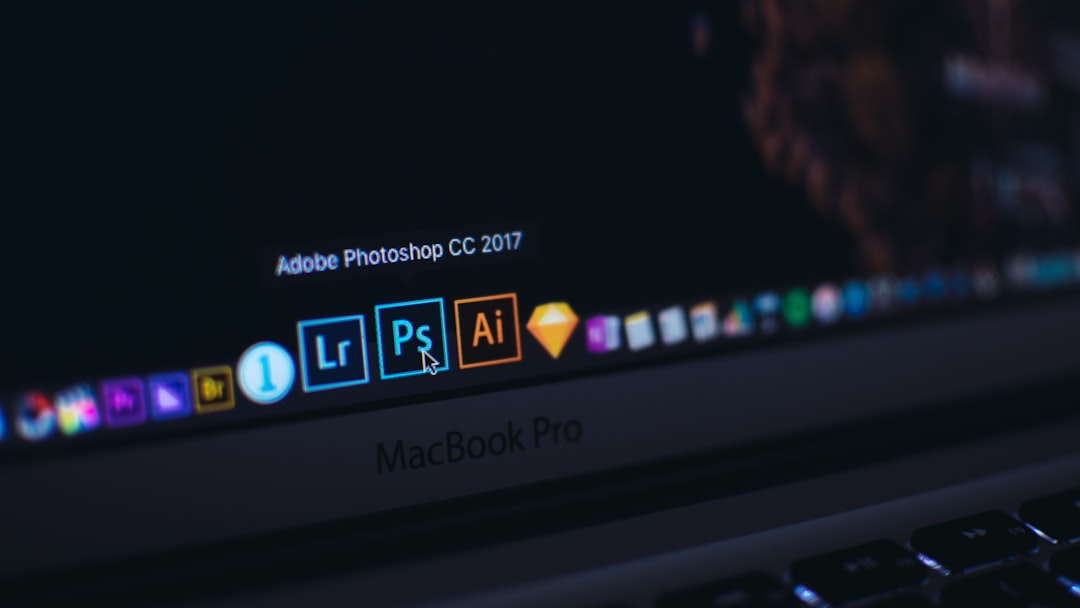
Pro tip: Some automation scripts only support 8 Bits/Channel.
To fix that:
- Go to Image
- Click Mode
- Select 8 Bits/Channel
If you were working in 16-bit or 32-bit, that could be your issue.
2. Unlock the Background Layer
Scripts often don’t like locked layers.
If your image just opened, you may see a locked “Background” layer.
Simple fix:
- Go to the Layers panel
- Double click on “Background”
- Press OK to unlock
Now it’s a normal layer. Run the script again.
Small change. Big difference.
3. Save the File First
This one surprises many people.
Some scripts require the image to be saved before processing. If you’re working on an unsaved document, the script may stop.
Fix:
- Click File
- Select Save As
- Save as PSD or JPG
Then test the script again.
Why does this matter? Because some scripts need a file path. Unsaved documents don’t have one.
4. Check File Format Compatibility
Not all formats behave the same.
Some scripts struggle with:
- Smart Objects from RAW files
- HEIC files
- PSB large document format
If you’re working with a strange format, try this:
- Flatten the image
- Save it as PSD
- Reopen it
Then retry the script.
Simple reset. Often works.
5. Disable Smart Objects (Temporarily)
Smart Objects are awesome. But scripts sometimes can’t edit them directly.
If your layer shows a small icon in the corner, it’s likely a Smart Object.
To fix:
- Right click the Smart Object layer
- Select Rasterize Layer
This converts it into a normal layer.
Now test your script again.
Important: Rasterizing removes Smart Object flexibility. Save a backup first.
6. Check Script Compatibility
Photoshop updates often. Scripts don’t always keep up.
If your script was made for an older version, it might not work perfectly now.
Ask yourself:
- Did Photoshop update recently?
- Did the script stop working after that?
If yes, try this:
- Download the latest version of the script
- Contact the script developer
- Run Photoshop in legacy mode (if available)
Sometimes, reinstalling the script works too.
7. Check Permissions (Mac and Windows)
This one is sneaky.
Your system may be blocking Photoshop from accessing files.
On Mac:
- Open System Settings
- Go to Privacy and Security
- Click Full Disk Access
- Make sure Photoshop is enabled
On Windows:
- Right click Photoshop icon
- Select Run as Administrator
Then try again.
Permissions problems are common after system updates.
8. Reset Photoshop Preferences
Still not working? Resetting preferences can fix weird behavior.
Corrupted preferences can cause scripts to fail.
Quick reset method:
- Close Photoshop
- Reopen while holding:
- Shift + Ctrl + Alt (Windows)
- Shift + Command + Option (Mac)
- Confirm reset
This gives Photoshop a fresh start.
Warning: You will lose custom settings.
9. Look at the Error Message
Don’t ignore it.
Error popups usually tell you what’s wrong.
Common messages:
- The command is not currently available
- General Photoshop error occurred
- No such element
These usually mean:
- Wrong layer selected
- No document open
- Required selection missing
Always select the layer the script expects.
For example, some scripts require:
- An active pixel layer
- A selection area
- At least two layers
Check the instructions that came with the script.
10. Test with a Simple Image
Here’s a quick trick.
Create a brand new file:
- RGB color
- 8 bit
- White background
Draw a simple red square.
Run the script.
If it works, your original file was the issue.
If it still fails, the script or Photoshop setup is likely the problem.
11. Reinstall the Script
Sometimes the installation itself is broken.
Try this:
- Delete the script file
- Download it again
- Place it in the correct Scripts folder
- Restart Photoshop
Make sure it’s in the right folder:
- Photoshop > Presets > Scripts
Then access it from:
- File > Scripts
12. Use the ExtendScript Toolkit (Advanced)
If you’re comfortable with code, you can debug the script.
Open it in a script editor and look for lines referencing:
- Document mode
- Layer names
- Selections
You may find it expects something specific, like a layer named “Background copy.”
If your file doesn’t match that, the script breaks.
Even renaming a layer can fix things.
Quick Troubleshooting Checklist
Before you panic, check these:
- ✔ Image is RGB
- ✔ 8 Bits/Channel selected
- ✔ Background unlocked
- ✔ Image saved
- ✔ Using PSD format
- ✔ No Smart Objects (or rasterized)
- ✔ Photoshop has permissions
- ✔ Script updated
Most issues are solved within these steps.
Why This Happens So Often
Photoshop is complex.
Scripts are written with assumptions. They assume specific settings. They assume certain layers. They assume certain modes.
But real-world files are messy.
You may:
- Import from Lightroom
- Work in CMYK for print
- Edit in 16-bit for quality
- Use Smart Objects
All of that can confuse a script that expects something simple.
It’s not your fault.
It’s just mismatched expectations.
Final Thoughts
When Photoshop scripts can’t process open images, it feels frustrating. But the solution is usually small.
Start with color mode. Then bit depth. Then layers.
Most problems are fixed in under five minutes.
And once you know what to check, you’ll solve it fast every time.
Remember: Scripts are picky. But you’re smarter.
Now go fix it. 🚀