
Notion Calendar can become a reliable control center for your week when it is used deliberately: not merely as a place to store meetings, but as a system for connecting commitments, tasks, deadlines, and planning decisions. The key is to treat your calendar as a limited schedule, not an unlimited task list. When Notion databases and calendar blocks work together, you gain a clearer view of what must happen, when it should happen, and whether your plans are realistic.
TLDR: Use Notion Calendar by connecting it to the Notion databases where your tasks, projects, and deadlines already live. Create a consistent task database with dates, priorities, statuses, and time estimates, then use the calendar to block real working time for important items. Review your schedule daily and weekly so overdue tasks, meetings, and deep work blocks remain aligned. The most efficient setup is simple, disciplined, and based on what you can actually complete.
Table of Contents
Why Notion Calendar Works Well for Task Management
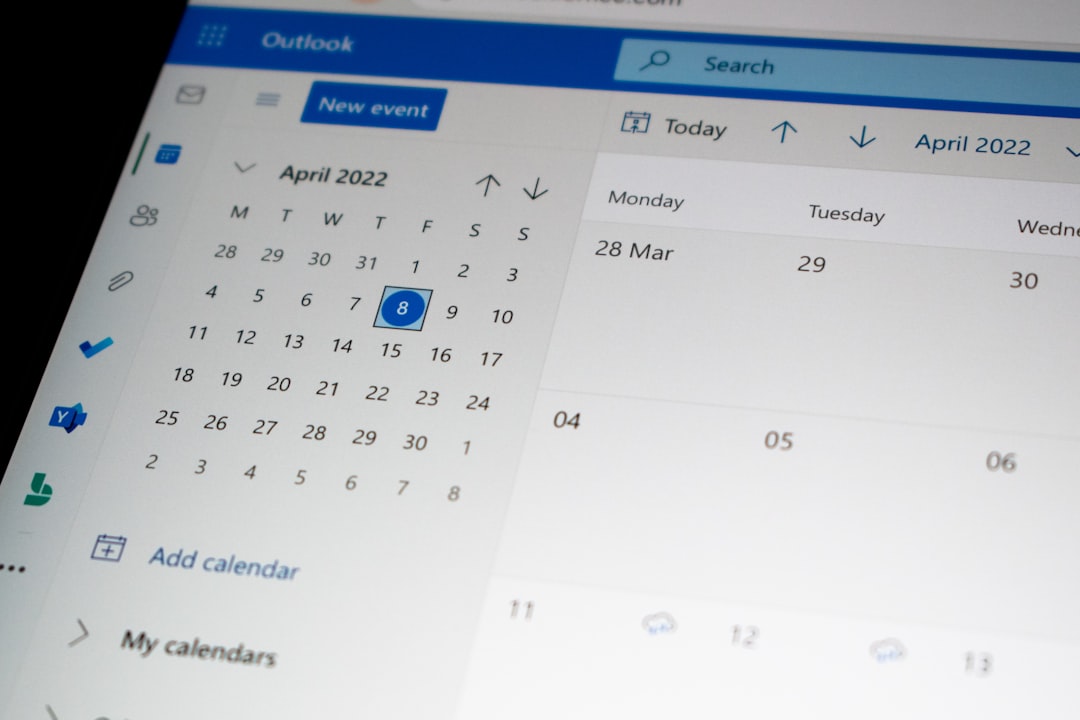
Traditional calendars are excellent for meetings, appointments, and fixed events, but they often fail to show the broader work behind those commitments. Task managers, on the other hand, can become long lists of unfinished items with no clear relationship to available time. Notion Calendar is useful because it helps bridge that gap: it can display calendar events alongside dated Notion pages, allowing you to see deadlines, project work, and scheduled commitments in one place.
This is especially valuable for professionals, students, freelancers, and teams that already use Notion as a knowledge base or project hub. Instead of switching between a planner, a task list, and a calendar, you can use Notion as the source of truth for work and Notion Calendar as the scheduling layer. This reduces context switching and helps prevent the common mistake of planning more work than the day can hold.
Start with a Clean Task Database
Before you depend on Notion Calendar, create or refine a Notion task database. A messy database will produce a messy calendar, so it is worth taking the time to design a structure that supports decision-making. At minimum, your task database should include the following properties:
- Task name: A clear action, such as “Draft client proposal” rather than “Proposal.”
- Date: The deadline, scheduled work session, or target completion date.
- Status: Examples include Not started, In progress, Waiting, and Done.
- Priority: Use a simple scale such as High, Medium, and Low.
- Project: Link the task to a project database if you manage larger initiatives.
- Estimated effort: Record how long the task is likely to take, such as 30 minutes, 1 hour, or 3 hours.
- Owner: Useful for teams, but also helpful for separating personal and professional responsibilities.
The Date property is particularly important because it determines whether and how the item appears in Notion Calendar. A task without a date may still be important, but it will not help you manage your schedule unless it is assigned to a realistic time frame. For this reason, avoid using dates casually. A date should mean either “this is due then” or “I intend to work on it then.”
Connect Notion Databases to Notion Calendar
Once your task database is ready, connect it to Notion Calendar. In practice, this allows dated pages from your Notion database to appear in your calendar view. If you use Google Calendar, you can also see meetings and external commitments alongside your Notion tasks. This combined view is the foundation for efficient planning.
When connecting databases, be selective. It may be tempting to display every database with a date property, but that can quickly overwhelm your calendar. Start with only the databases that represent real time commitments, such as:
- Tasks that require your direct action.
- Project milestones that affect planning or delivery.
- Editorial calendars for publishing, marketing, or content work.
- Assignments or coursework for academic planning.
Avoid cluttering your calendar with reference dates, vague reminders, or low-value items. The calendar should remain a trusted view of your time, not a visual archive of everything in your workspace.
Use Time Blocking Instead of Simple Due Dates
One of the most effective ways to use Notion Calendar is to move beyond due dates and adopt time blocking. A due date tells you when something must be finished; a time block tells you when the work will actually happen. This distinction is critical. Many missed deadlines are not caused by forgetting the deadline, but by failing to reserve time to complete the work.
For example, if a report is due Friday, do not simply place the task on Friday. Create work blocks earlier in the week: research on Tuesday, drafting on Wednesday, editing on Thursday. This turns an abstract obligation into a practical schedule.
Use time blocks for:
- Deep work: Writing, analysis, strategy, design, or planning that requires focus.
- Administrative work: Email, invoicing, filing, and routine updates.
- Project progress: Concrete steps that move a larger project forward.
- Review sessions: Daily planning, weekly reviews, and backlog cleanup.
Keep the blocks realistic. If a task is estimated to take two hours, do not squeeze it into a 30-minute opening unless you are only completing a small part of it. Reliable scheduling depends on honest estimates.

Separate Deadlines from Work Sessions
A serious scheduling system distinguishes between a deadline and a work session. The deadline is the final point of accountability. The work session is the time you schedule to make progress. In Notion, you can manage this in a few ways.
One approach is to use a single task with a date range. The end date can represent the deadline, while the start date marks when you intend to begin. Another approach is to create separate sub-tasks for each work session. For more complex projects, a project database with related tasks is usually clearer. The best method depends on the complexity of your work, but the principle remains the same: do not rely on deadline visibility alone.
If everything appears on the day it is due, your calendar will become reactive. If work is distributed across the days before the deadline, your calendar becomes proactive.
Create a Practical Daily Planning Routine
Notion Calendar becomes much more effective when paired with a short daily planning habit. This does not need to be complicated. Spend five to ten minutes at the start or end of each day reviewing your calendar and task database.
A reliable daily routine might look like this:
- Review today’s meetings and fixed commitments. Identify how much flexible time remains.
- Check scheduled Notion tasks. Confirm that each task still belongs on today’s calendar.
- Choose the top priorities. Select no more than three meaningful outcomes for the day.
- Reschedule honestly. Move tasks that no longer fit instead of leaving them overdue.
- Protect focus time. Place demanding work in the part of the day when your attention is strongest.
This routine helps maintain trust in the system. If your calendar is full of stale tasks and unrealistic plans, you will eventually ignore it. If it reflects your actual priorities and available time, you are more likely to follow it.
Use Weekly Reviews to Keep the System Accurate
Daily planning keeps you oriented, but weekly reviews keep the system healthy. At least once a week, review your Notion task database and calendar together. Look at unfinished tasks, upcoming deadlines, stalled projects, and recurring commitments. The purpose is not to reorganize endlessly, but to make practical decisions.
During a weekly review, ask:
- What must be completed next week?
- Which deadlines are at risk?
- Which tasks should be deleted, delegated, or postponed?
- Where do I need uninterrupted work time?
- Is my calendar overloaded?
If your calendar is consistently over capacity, the solution is not a more complex system. The solution is better prioritization. Reduce low-value commitments, renegotiate deadlines where possible, and leave open space for unexpected work. A schedule with no buffer is fragile.
Color and Categorize with Restraint
Visual organization can make Notion Calendar easier to read, but too many categories can create noise. Use colors and labels only where they support quick decisions. For example, you might distinguish between client work, internal work, personal commitments, and deep work. Teams may also categorize by department or project type.
A simple color system could be:
- Blue: Meetings and calls.
- Green: Deep work or production time.
- Orange: Deadlines and deliverables.
- Purple: Planning and review.
- Gray: Administrative tasks.
The goal is to understand your day at a glance. If you need a legend with fifteen categories, the system is too complicated. Serious productivity systems are usually simple enough to maintain under pressure.
Manage Meetings and Tasks in the Same View
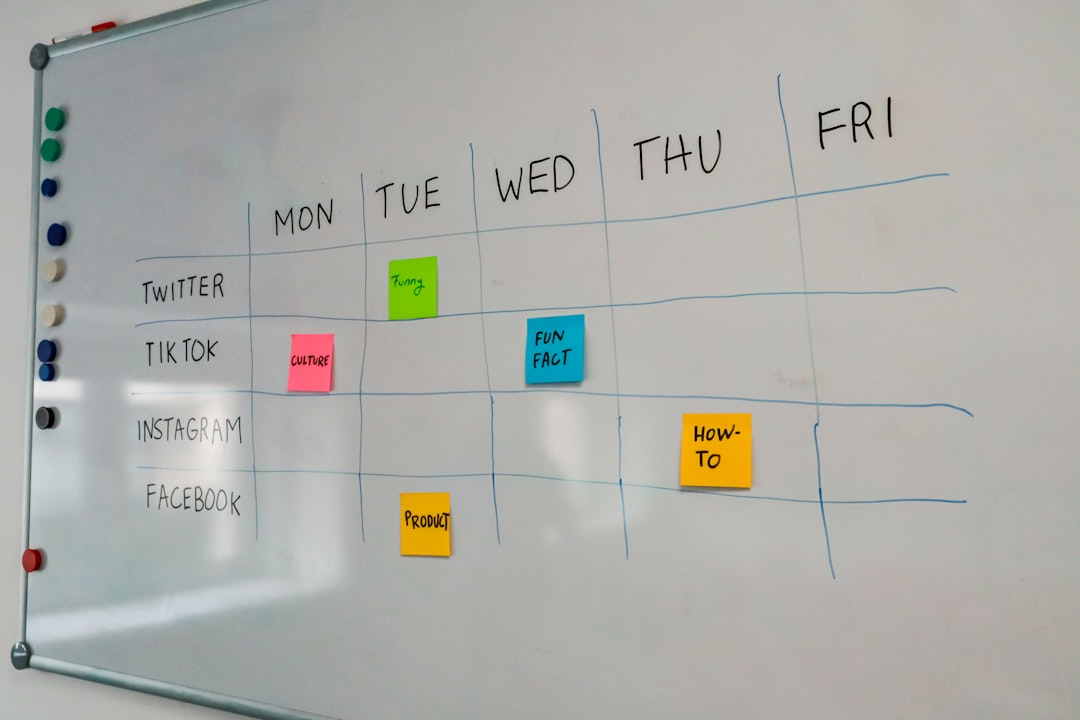
One of the strongest benefits of Notion Calendar is the ability to compare meetings with task workload. A day with six meetings is not a good day for ambitious deep work. A week full of calls may require you to schedule smaller, more focused tasks or move complex work to quieter days.
When planning, treat meetings as fixed costs. Then decide how much true working capacity remains. If your calendar shows only two open hours, do not schedule five hours of tasks. Instead, choose the highest-value work and move the rest. This habit protects you from hidden overload and helps you make commitments more responsibly.
Use Reminders and Notifications Carefully
Reminders can be useful, but they should not compensate for poor planning. Too many notifications train you to dismiss them. Use reminders for events that genuinely require timely attention, such as meetings, calls, appointments, and hard deadlines. For ordinary task work, your daily planning routine and calendar blocks should be enough.
If you do use reminders for tasks, set them with intention. A reminder five minutes before a two-hour writing block may not be helpful if you need preparation time. A reminder the day before a major deadline may be more useful. The best notification is one that gives you enough time to act.
Build a Workflow for Overdue Tasks
Every task system eventually contains overdue items. The important question is how you handle them. Do not let overdue tasks accumulate without review. They create stress and weaken confidence in your planning process.
Create a simple overdue workflow:
- Review overdue tasks daily or during your weekly review.
- Decide whether each task is still necessary. If not, archive or delete it.
- Reschedule tasks that remain relevant. Assign them to a specific day or work block.
- Escalate or communicate delays if other people are affected.
- Look for patterns. Frequent overdue tasks may indicate unrealistic estimates or unclear priorities.
This process turns overdue work into a management signal rather than a source of guilt. A trustworthy calendar is not one where nothing ever changes; it is one where changes are handled clearly.
Best Practices for Teams
For teams, Notion Calendar can support better coordination when everyone follows shared rules. Agree on what date fields mean, how statuses are updated, and which databases should appear in calendar views. Without conventions, one person may treat a date as a deadline while another uses it as a rough reminder, leading to confusion.
Teams should define:
- Ownership: Every task should have a responsible person.
- Status standards: A task marked “Done” should meet an agreed definition of completion.
- Deadline rules: Deadlines should be realistic and visible early enough for planning.
- Review cadence: Weekly or biweekly planning sessions keep calendars aligned.
Used properly, Notion Calendar can reduce unnecessary status meetings because work, deadlines, and availability become more visible. However, it should not replace direct communication when priorities change or risks appear.
Common Mistakes to Avoid
Several mistakes can make Notion Calendar less effective. The first is using it as a dumping ground for every possible task. A calendar must represent time, so only schedule work you intend to do within a specific window. The second mistake is ignoring task duration. A list of ten tasks may look manageable until you calculate that they require twelve hours of work.
Another mistake is failing to review the system. Even a well-designed calendar becomes inaccurate if it is not maintained. Finally, avoid building an overly complex Notion workspace before establishing basic habits. A simple database that you update consistently is more valuable than an elaborate system you abandon after two weeks.
Conclusion
Notion Calendar is most powerful when it is used as a practical scheduling layer on top of a well-organized Notion workspace. By connecting task databases, blocking time for real work, separating deadlines from work sessions, and reviewing your schedule regularly, you can manage commitments with greater clarity and control. The aim is not to fill every minute, but to make deliberate choices about where your time goes.
A serious productivity system should help you think clearly, plan realistically, and follow through consistently. Notion Calendar can do that when you keep the structure simple, protect focus time, and maintain the discipline to review and adjust your plans. Used in this way, it becomes more than a calendar; it becomes a dependable framework for managing work and time efficiently.