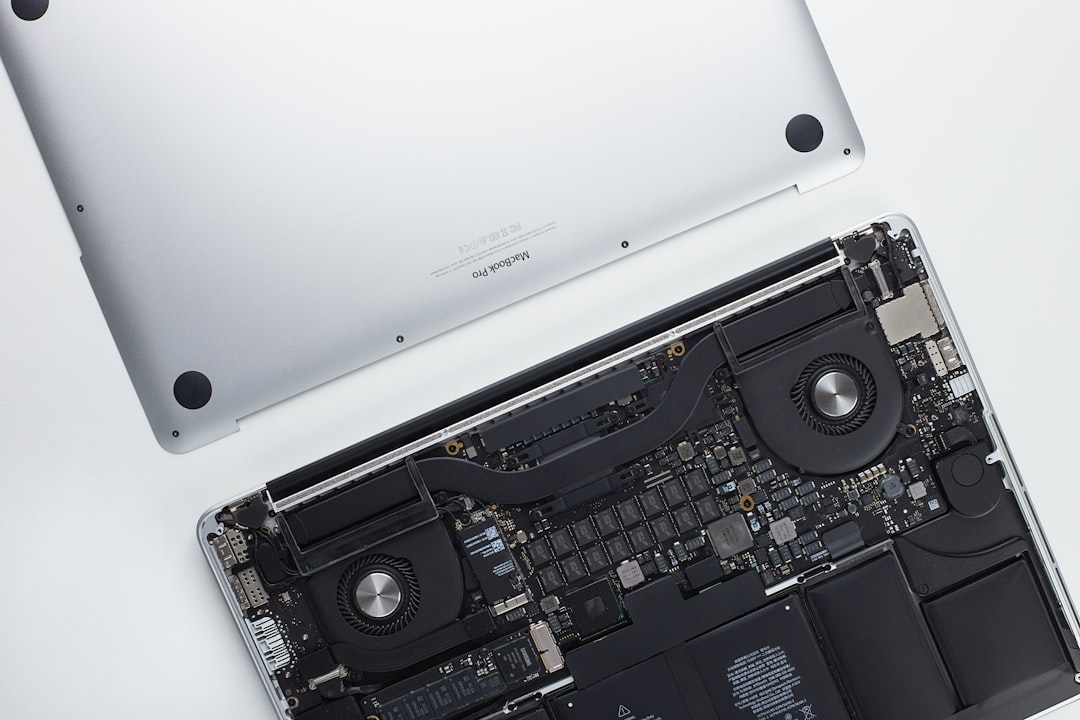
MacBooks are praised for their sleek design, performance, and reliability. However, despite their engineering excellence, they are not immune to hardware stresses—one of the most common being heat damage. Whether you’re a heavy user or occasionally run demanding applications, prolonged heat exposure can take a toll on your MacBook’s internal components, significantly reducing its lifespan and performance. That’s why understanding how to recognize, prevent, and deal with heat damage is crucial to keeping your device running optimally for years to come.
Table of Contents
TLDR
If your MacBook is overheating, it’s essential not to ignore the symptoms. Prolonged heat exposure can degrade components such as the CPU, battery, and SSD. Immediate actions like closing background apps, cleaning vents, and elevating your MacBook can help manage temperatures, while long-term care might include software monitoring and professional diagnostics. Always avoid leaving your MacBook in hot environments and consider using cooling accessories for high-performance tasks.
What Causes Heat Damage on a MacBook?
Understanding the root causes of heat damage is the first step toward prevention. Your MacBook can overheat due to several factors:
- Poor ventilation: Using your device on soft surfaces like beds or couches blocks the air vents.
- Heavy processing load: Running graphic-intensive or CPU-heavy applications for extended durations.
- Dust buildup: Over time, internal fans can accumulate dust, reducing their efficiency.
- Ambient temperatures: Using the MacBook in hot environments adds to internal heat load.
- Battery health degradation: Older or faulty batteries can generate excessive heat during use or charging.
Identifying which of these factors applies to your situation will help determine the best course of action to stop or reverse damage.
Symptoms of Heat Damage
Heat damage usually doesn’t happen overnight—it’s a slow deterioration process. But early signs will let you know something’s not right. Look out for these symptoms:
- Unusual fan noise even when performing light tasks
- Unexpected shutdowns or reboots
- Lagging performance with simple programs
- Battery not charging or fast battery draining
- Screen flickers or freezes
- Burning smell or sensation of extremely hot surfaces
If you observe any of these signs consistently, you should take immediate steps to minimize further damage.
Immediate Steps to Take If You Suspect Heat Damage
If your MacBook is already hot or behaving erratically, follow these actions immediately:
- Shut it down: Power off your MacBook and let it cool naturally in a shaded, air-conditioned area.
- Remove any covers: Some cases restrict airflow and trap heat inside the device.
- Unplug peripherals and power: This stops any additional strain and heat generation.
- Elevate your MacBook: Let air flow underneath by placing it on a laptop stand or even a few books.
- Inspect for dust: If you’re comfortable opening your MacBook, check for dust around the fans and clean it carefully with a compressed air duster.
These steps can help prevent further thermal degradation and stabilize your MacBook temporarily.

Long-Term Prevention Strategies
Preventing heat damage is easier and more cost-effective than repairing it. Here are some trusted strategies to keep your MacBook cool in the long run:
1. Manage Software and Processes
Use macOS’s built-in Activity Monitor to keep tabs on rogue processes that consume too much CPU. Applications like video editors, 3D modeling tools, or browser tabs with heavy JavaScript can significantly raise device temperature. Try these techniques:
- Quit unnecessary applications running in the background.
- Use browsers with efficient resource management—like Safari—instead of Chrome.
- Install utility software like iStat Menus or CleanMyMac for performance monitoring and thermal data.
2. Use a Laptop Cooling Pad
Laptop cooling pads provide an extra layer of active cooling through external fans. These devices are simple to use and can be highly effective during gaming, rendering, or extended use.
3. Keep It Clean
Dust is a silent killer. Every few months, clean the ports and vents using compressed air. If your MacBook is out of warranty or you’re confident in repairing your device, consider removing the bottom panel and dusting the fans and heatsinks.
4. Avoid Extreme Environments
Never leave your MacBook in a hot car or exposed to direct sunlight for prolonged periods. Apple recommends operating temperatures between 50° and 95° F (10° to 35° C). Extreme ambient conditions can cause even passive processes to lead to overheating.
5. Replace Thermal Paste
If your MacBook is several years old and frequently overheating, the thermal paste between the CPU and heatsink may have degraded. Professional replacement can improve temperature performance by up to 10–15°C, but this should only be done by trained technicians or experienced DIY users.

When to Seek Professional Help
If you’ve tried all the preventive and emergency measures but your MacBook continues to overheat or behave erratically, it’s time to visit a certified technician. Signs that indicate serious, potentially irreversible heat damage include:
- Battery swelling or expansion
- Permanent screen discoloration or flickering
- Burn marks near ports or casing seams
- System crash even with minimal use
- Internal fan constantly running on high
Technicians can open up the system for a deep diagnostic which may reveal whether components like the logic board, SMC (System Management Controller), or SSD have sustained critical damage. In some cases, these parts can be replaced. In others, replacement may be more cost-effective than repair.
How to Monitor Temperatures Effectively
Staying ahead of heat issues is a matter of continued vigilance. Many trusted apps are available for tracking internal temperatures of your CPU, GPU, and hard drive:
- iStat Menus: Offers detailed readouts on CPU temps, fan speeds, and RAM usage.
- Mac Fan Control: Allows manual adjustment of internal fan RPMs for aggressive cooling.
- Intel Power Gadget: Aimed more at developers, but gives real-time power consumption and thermal readings.
Becoming acquainted with what’s “normal” for your MacBook model will help identify anomalies and take preemptive action before damage occurs.
Conclusion
MacBooks are premium devices that require a degree of care beyond simply keeping software updated. Heat damage is a slow but serious issue that, if ignored, can compromise your entire system. By developing good habits—like using cooling accessories, avoiding high-temp environments, and monitoring system performance—you can significantly extend the life and reliability of your machine. If your MacBook is already showing signs of heat stress, act fast. The sooner you cool things down, the better your chances of avoiding expensive repairs or replacement.