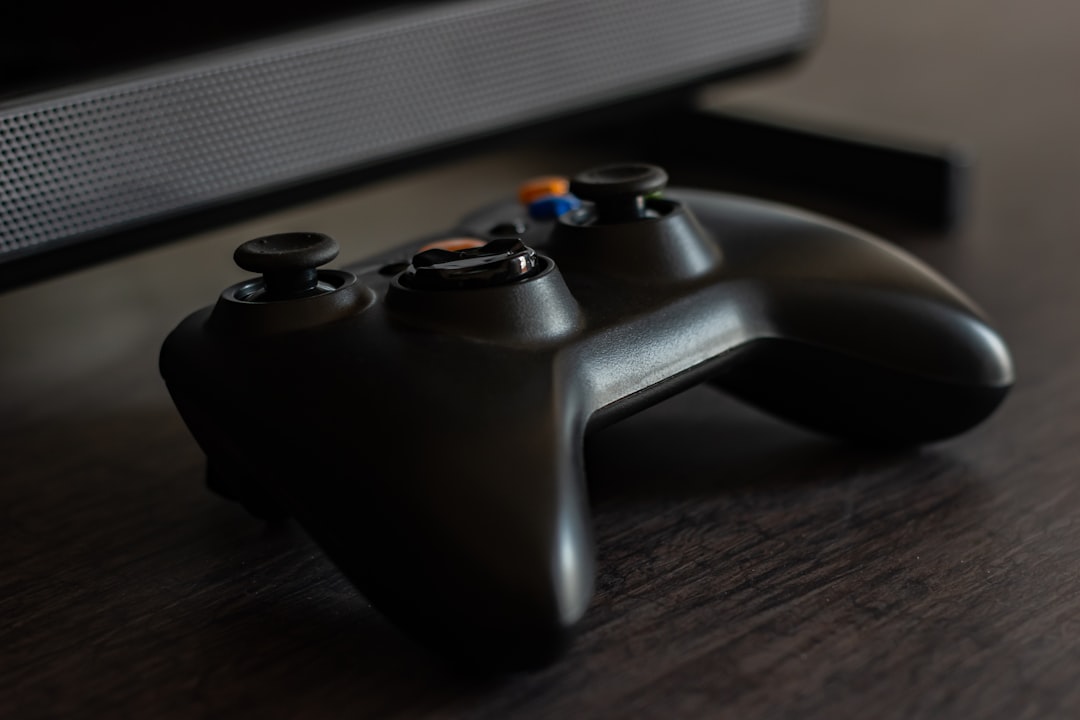
Your MocuMocuDance controller should make dancing in-game feel smooth and fun. But when it stops working, the fun ends fast. Buttons freeze. The character will not move. Or worse, nothing turns on at all. Do not worry. Most controller problems are easy to fix at home.
TL;DR: If your MocuMocuDance controller is not working, start with the basics. Check the cable, battery, and Bluetooth connection. Restart the device and update the drivers. If that fails, reset or recalibrate the controller. These simple steps solve most problems in minutes.
Table of Contents
Why MocuMocuDance Controllers Stop Working
Before jumping into fixes, it helps to know why problems happen. Most issues come from small things. Loose cables. Low battery. Old firmware. Or signal interference.
Here are the most common reasons:
- Dead or weak battery
- Loose USB cable
- Bluetooth pairing failure
- Outdated drivers
- Incorrect in-game settings
The good news? You can fix nearly all of these yourself.
Fix #1: Check Power and Battery First
This sounds simple. But it solves more problems than any other step.
If you use a wireless controller, check the battery level. Low power can cause:
- Input delay
- Random disconnections
- Buttons not responding
- Controller not turning on
Charge it fully. Do not test it halfway through charging. Let it reach 100%.
If it runs on replaceable batteries, swap them out. Even if they seem fine.
For wired controllers, check the cable. Is it bent? Frayed? Loose?
Try a different USB cable if possible. Also try a different USB port.
Sometime the port is the problem, not the controller.
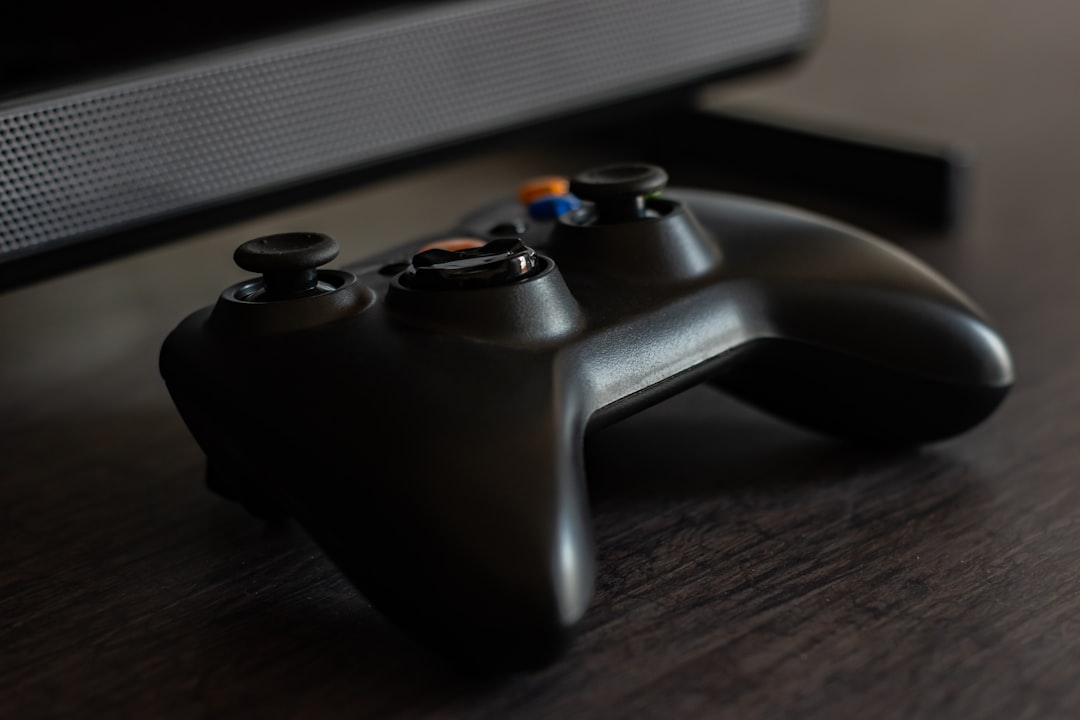
Quick Tip: Plug the controller directly into the computer. Avoid USB hubs during testing.
Fix #2: Restart Everything
Yes. Turn it off and on again. It works more often than you think.
Here is the correct order:
- Turn off the game.
- Disconnect the controller.
- Restart your PC or console.
- Reconnect the controller.
- Launch the game again.
This clears temporary glitches. It resets the connection. It refreshes system processes.
If you are using Bluetooth, remove the device from your Bluetooth list. Then pair it again from scratch.
Fresh pairing can fix invisible connection errors.
Fix #3: Reconnect or Re-Pair Bluetooth
Wireless controllers are convenient. But they can be picky.
If your character stops dancing or moves randomly, Bluetooth interference could be the reason.
Here is what to do:
- Turn off Bluetooth completely.
- Wait 10 seconds.
- Turn Bluetooth back on.
- Put the controller in pairing mode.
- Reconnect it in device settings.
Also check your surroundings. Wireless routers. Speakers. Other controllers. They all fight for signal space.
Move closer to your system. Keep a clear line between controller and receiver.
If your PC has both 2.4GHz and 5GHz WiFi, switching bands can sometimes reduce interference.

Small change. Big impact.
Fix #4: Update Drivers and Firmware
Outdated software causes strange problems.
Your controller may turn on. But the buttons respond incorrectly. Or the joystick feels stuck. Or the motion sensors act wild.
This often means drivers need an update.
On Windows:
- Open Device Manager.
- Find your controller under Human Interface Devices.
- Right-click it.
- Select Update Driver.
You can also check the official MocuMocuDance support page for firmware updates.
Install updates carefully. Follow instructions step by step.
If problems started after an update, try rolling back the driver instead.
Sometimes new updates create temporary bugs.
Fix #5: Reset and Recalibrate the Controller
If nothing else works, reset it.
Most MocuMocuDance controllers have a small reset button. It is usually on the back. You may need a paperclip to press it.
Hold it for 5–10 seconds.
This restores factory settings.
After resetting, recalibrate the controller inside the game settings.
To recalibrate:
- Open game settings.
- Go to Controller Settings.
- Select Calibrate.
- Follow on-screen instructions.
Move each joystick slowly. Press every button fully. Let the system detect full range of motion.
Calibration solves:
- Drifting joystick
- Unresponsive triggers
- Motion detection errors
- Off-center movement
Bonus Fix: Check In-Game Settings
Sometimes the controller works fine. The game settings are wrong.
Open MocuMocuDance settings and check:
- Is the correct controller selected?
- Is controller input enabled?
- Are button mappings correct?
- Is sensitivity set too low?
If needed, reset controls to default.
Custom key mapping can accidentally disable important commands.
Bonus Fix: Test on Another Device
Still unsure where the problem is?
Test the controller on another PC or console.
If it works there, your system is the issue.
If it does not work anywhere, the controller may be damaged.
Common hardware damage includes:
- Broken internal battery
- Loose internal wiring
- Faulty USB port
- Damaged Bluetooth chip
In that case, you may need repair or replacement.
How to Prevent Future Problems
Prevention saves time.
Follow these tips:
- Keep firmware updated.
- Store controller in a dry place.
- Avoid dropping it.
- Do not wrap cables tightly.
- Charge before battery hits zero.
Also clean it gently.
Dust can block buttons. Sweat can affect sensors. Wipe it with a soft dry cloth.
When to Contact Support
If you tried all five fixes and nothing works, it may be time for help.
Contact support if:
- The controller will not turn on at all.
- It disconnects every few seconds.
- Buttons register ghost inputs.
- It overheats while charging.
Have this information ready:
- Controller model
- Purchase date
- System you are using
- List of fixes already tried
This speeds up the process.
Final Thoughts
A broken controller feels frustrating. Especially when you are ready to dance.
But slow down. Start simple.
Check power. Restart everything. Reconnect properly. Update drivers. Reset and recalibrate.
These five steps fix most MocuMocuDance controller problems quickly.
You do not need advanced tools. You do not need tech skills. Just patience and a few minutes.
Soon your character will spin, jump, and groove again.
And you can get back to dancing like nothing happened.
Simple fixes. Smooth moves. Problem solved.