Few technical issues are as frustrating as connecting a second monitor and being greeted with the message “Display 2 Isn’t Active.” Whether you are working on a critical project, gaming, or giving a presentation, a non-functioning extended display can disrupt productivity and waste valuable time. This error can appear on Windows and other operating systems when the computer detects a secondary monitor but fails to activate or display content on it. Understanding the underlying causes is the first step toward resolving the problem effectively.
TLDR: The “Display 2 Isn’t Active” error usually occurs due to cable issues, outdated drivers, incorrect display settings, hardware conflicts, or graphics card limitations. Start with basic checks such as cables and input sources, then verify display settings and update drivers. If the issue persists, review graphics hardware capabilities or test with another monitor. A methodical troubleshooting approach resolves most cases quickly.
Table of Contents
Understanding What “Display 2 Isn’t Active” Means
When your system shows “Display 2 Isn’t Active,” it typically indicates that the operating system detects a secondary monitor connection but is not currently outputting a signal to it. The display may appear as grayed out in display settings, or you may see a message stating the monitor is not active despite being physically connected.
This situation can result from:
- Improper display configuration
- Loose or incompatible cables
- Graphics driver problems
- Unsupported resolution or refresh rate settings
- Hardware or GPU limitations
Before assuming hardware failure, it’s important to go through structured troubleshooting steps.
Common Causes of the “Display 2 Isn’t Active” Error
1. Loose or Faulty Cables
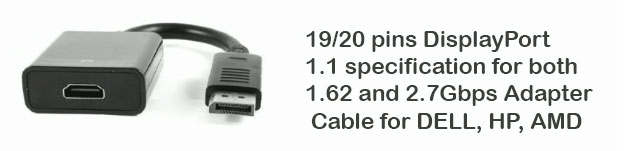
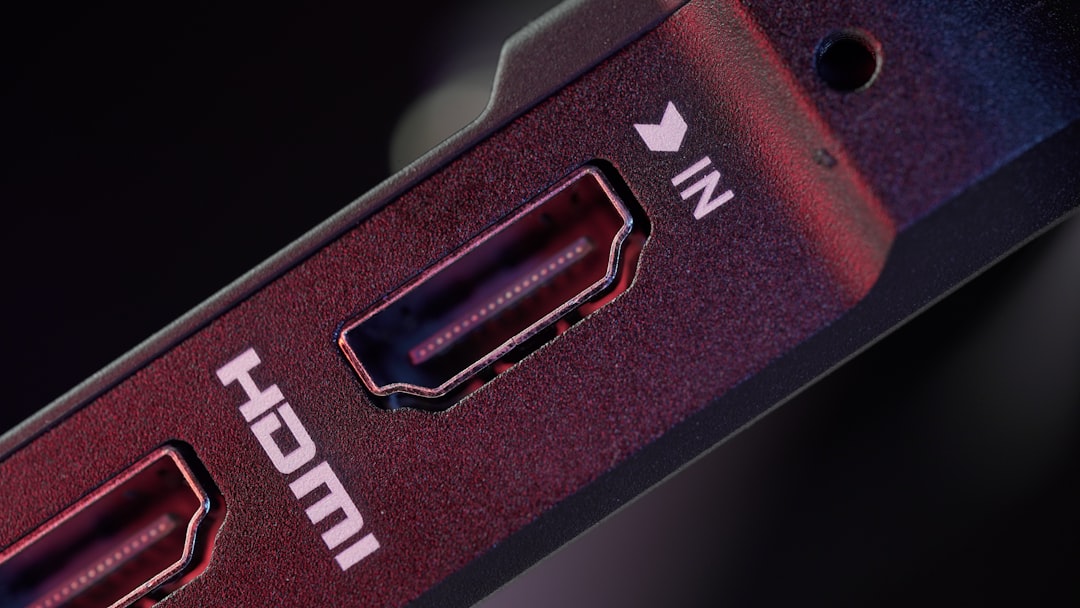
Cable issues are one of the most common causes. HDMI, DisplayPort, DVI, or VGA cables can become loose, damaged, or incompatible with certain resolutions.
Check for the following:
- Secure connections at both ends
- Visible damage to the cable
- Proper adapter compatibility (if using HDMI to VGA, etc.)
If possible, test with a different, known-working cable.
2. Incorrect Display Settings
Sometimes the second display is inactive simply because it hasn’t been enabled in system settings.
On Windows systems:
- Right-click on the desktop and select Display settings.
- Click the Detect button if the second display is not shown.
- Scroll down to Multiple displays and choose Extend these displays from the dropdown menu.
- Click Apply.
It is also important to ensure that the monitor is not set to “Disconnect this display.”
3. Outdated or Corrupted Graphics Drivers
Your graphics card driver controls communication between your hardware and the operating system. If it becomes outdated or corrupted, display detection issues can occur.
Symptoms of driver-related problems include:
- Display flickering
- Resolution reset after reboot
- Second monitor not activating despite detection
The solution involves updating drivers via Device Manager or downloading the latest version from the GPU manufacturer’s official website.
4. Unsupported Resolution or Refresh Rate
If your computer attempts to output a resolution or refresh rate not supported by the second monitor, the screen may remain black while still appearing detected.
To fix this:
- Select the inactive display in Display settings.
- Lower the resolution temporarily to a standard setting like 1920×1080.
- Set the refresh rate to 60Hz (if unsure of compatibility).
5. Graphics Card Limitations
Not all graphics cards support multiple active displays simultaneously. Some integrated GPUs limit the number of outputs, especially when using specific port combinations.
For example:
- Older GPUs may only support one HDMI output at a time.
- Certain laptop GPUs disable external monitors when lid is closed without proper settings.
- USB adapters may require additional drivers or power.
Check your graphics card’s technical specifications to confirm supported configurations.
Step-by-Step Troubleshooting Guide
If you encounter the “Display 2 Isn’t Active” error, follow this structured process:
Step 1: Basic Physical Checks
- Power cycle both monitors.
- Restart your computer.
- Disconnect and reconnect display cables securely.
- Test another input port on the monitor.
These simple steps resolve a surprising number of issues.
Step 2: Check Input Source on Monitor
Many monitors have multiple input sources (HDMI 1, HDMI 2, DisplayPort). Ensure the monitor is set to the correct input that matches the connected cable.
Step 3: Detect the Monitor Manually
If automatic detection fails:
- Open Display settings.
- Click Detect.
- Select the inactive display icon.
Step 4: Update or Reinstall Display Drivers
To update drivers:
- Open Device Manager.
- Expand Display adapters.
- Right-click your GPU and choose Update driver.
If updating fails, consider uninstalling the driver and restarting the computer. The system will reinstall a clean version automatically.
Step 5: Test With Another Monitor
To isolate whether the problem lies with the monitor or the computer:
- Connect the suspected monitor to another device.
- Connect a different monitor to your current system.
If the second monitor works elsewhere, the issue likely resides in your system settings or graphics hardware.
Advanced Causes and Fixes
1. BIOS or Firmware Issues
Outdated BIOS firmware can sometimes interfere with hardware detection. While less common, checking for BIOS updates from your motherboard or laptop manufacturer can resolve persistent problems.
2. Docking Station Conflicts
If you are using a docking station:
- Ensure the dock supports dual displays.
- Update docking station drivers.
- Confirm the power supply is sufficient.
Underpowered docks can fail to activate secondary monitors.
3. Power Supply Constraints
In desktop environments, insufficient PSU capacity can sometimes lead to unstable multi-monitor setups. High-performance GPUs especially require enough power to drive multiple displays reliably.
4. Windows Projection Mode Settings
Press Win + P on Windows to bring up projection options. Ensure you have selected:
- Extend – for multiple displays
- Not PC screen only
This is a commonly overlooked setting that instantly resolves the issue.
Preventive Measures
To avoid encountering the “Display 2 Isn’t Active” error in the future, consider these preventive practices:
- Keep graphics drivers updated regularly.
- Invest in high-quality certified cables.
- Avoid frequent forced shutdowns of the system.
- Restart the system after major updates.
- Use monitors within supported resolution ranges.
Routine maintenance significantly reduces display-related inconsistencies.
When to Seek Professional Help
If all troubleshooting steps fail, professional assistance may be necessary. Indicators that suggest deeper hardware issues include:
- No display output on any external monitor.
- Visible GPU artifacts on screen.
- Frequent system crashes when connecting a second display.
In such cases, the GPU, motherboard ports, or internal display circuitry may require repair or replacement.
Final Thoughts
The “Display 2 Isn’t Active” error can appear alarming, but in most cases, it stems from simple configuration errors, cable issues, or outdated drivers. By systematically working through physical checks, software settings, and driver updates, the majority of users can restore dual-monitor functionality without professional intervention.
A second display enhances productivity, improves workflow efficiency, and supports multitasking environments. Taking a disciplined troubleshooting approach ensures that minor technical setbacks remain manageable and do not disrupt your work unnecessarily.
With accurate diagnosis and careful resolution, activating your second display is usually a straightforward task rather than a major technical challenge.