Few computer issues are as frustrating as powering on your monitor only to be greeted with the dreaded “Input Signal Out of Range” error. The message appears suddenly, often right when you need your system the most, and leaves you staring at a blank or distorted screen. While it may seem like a serious hardware failure, the truth is that this error is usually caused by mismatched display settings or simple configuration problems. The good news? In most cases, it’s completely fixable.
TL;DR: The “Input Signal Out of Range” error happens when your monitor receives a resolution or refresh rate it cannot display. This is typically caused by incorrect display settings, outdated drivers, faulty cables, or hardware compatibility issues. Fixes include booting into safe mode, adjusting resolution and refresh rate, updating drivers, and checking cables. In most cases, you can resolve the issue in minutes without needing new hardware.
Let’s break down what this error means, why it happens, and the seven most effective fixes that actually work.
Table of Contents
What Does “Input Signal Out of Range” Mean?
Your monitor has specific limits for resolution and refresh rate. When your computer sends a video signal outside those limits, the monitor cannot display it properly. Instead of showing a distorted image, it protects itself by displaying an error.
This typically happens after:
- Changing screen resolution settings
- Updating or reinstalling graphics drivers
- Connecting to a new monitor
- Overclocking your GPU
- Launching certain games in unsupported resolutions
Understanding the root cause is key to fixing it quickly. Below are the seven most common causes—along with clear solutions.
1. Incorrect Screen Resolution
The Cause: Your system is outputting a resolution higher (or sometimes lower) than your monitor supports.
The Fix:
- Restart your computer.
- Boot into Safe Mode (press F8, Shift + Restart, or use recovery settings depending on your OS).
- Open display settings.
- Set resolution to the monitor’s recommended (native) resolution.
- Restart normally.
Why this works: Safe Mode loads basic display drivers at low resolution, allowing you to reset the settings safely.
2. Unsupported Refresh Rate
The Cause: The refresh rate (measured in Hz) is set higher than your monitor can handle. For example, sending 144Hz to a monitor that only supports 60Hz.
The Fix:
- Boot into Safe Mode.
- Go to Advanced Display Settings.
- Lower the refresh rate to a supported value (60Hz is usually safe).
- Apply changes and reboot.
Modern gaming monitors support high refresh rates, but standard office monitors typically max out at 60Hz or 75Hz.
3. Graphics Driver Issues
The Cause: Corrupted, outdated, or newly installed graphics drivers can automatically change display output settings.
The Fix:
- Boot into Safe Mode.
- Open Device Manager.
- Uninstall your graphics driver.
- Restart your computer.
- Install the latest official driver from your GPU manufacturer (NVIDIA, AMD, Intel).
If the issue appeared right after a driver update, consider rolling back to a previous version.
Pro Tip: Avoid installing beta drivers unless you specifically need them for compatibility.
4. Loose or Faulty Display Cables
The Cause: Damaged HDMI, DisplayPort, DVI, or VGA cables can transmit unstable or incorrect signals.
The Fix:
- Turn off both monitor and PC.
- Disconnect and reconnect display cables securely.
- Try a different cable if available.
- Test another port on the monitor or GPU.
Cables may appear fine externally but degrade internally over time. Swapping cables is a quick and inexpensive troubleshooting step.
5. Multiple Monitor Configuration Errors
The Cause: When using dual or triple monitors, your system may assign incompatible resolutions to a secondary display.
The Fix:
- Disconnect all secondary monitors.
- Restart your PC.
- Adjust resolution settings for the primary monitor.
- Reconnect additional monitors one at a time.
This helps isolate which display is causing the configuration conflict.
6. Overclocked GPU Settings
The Cause: Overclocking tools can push your GPU to output unstable or unsupported display signals.
The Fix:
- Enter Safe Mode.
- Open your overclocking software.
- Reset all settings to default.
- Restart normally.
If you cannot access the software, uninstall it entirely from Safe Mode.
Important: While overclocking can improve performance, it also increases the risk of instability like signal errors.
7. BIOS or Hardware Compatibility Settings
The Cause: Rarely, BIOS configuration or outdated firmware can create signal conflicts, especially with newer GPUs and older monitors.
The Fix:
- Reset BIOS to factory defaults.
- Check for motherboard BIOS updates.
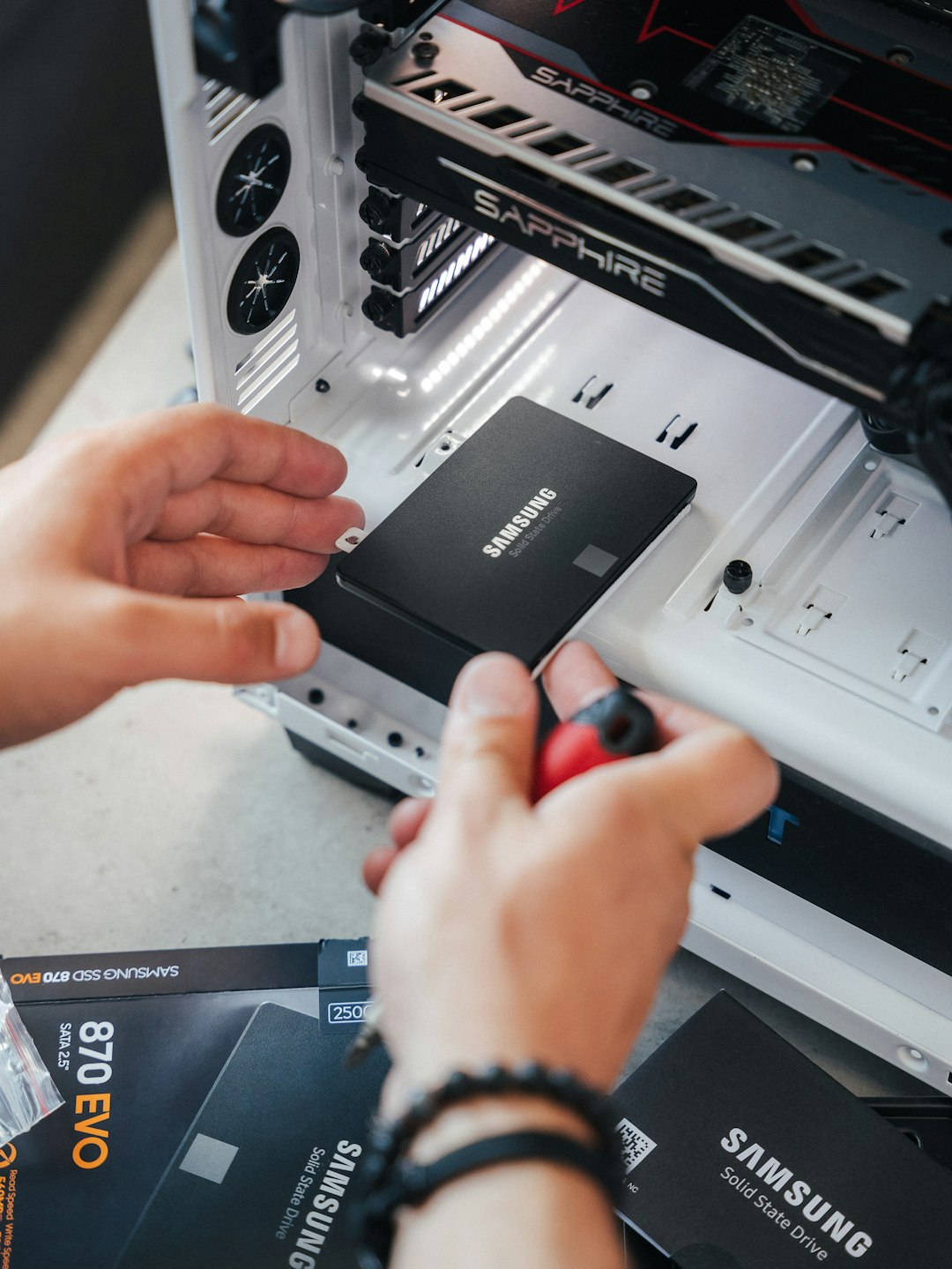
- Ensure GPU is seated properly in its PCIe slot.
This is less common but worth checking if simpler solutions fail.
Quick Comparison: Common Causes and Fastest Fix
| Cause | Difficulty Level | Time to Fix | Most Effective Solution |
|---|---|---|---|
| Incorrect Resolution | Easy | 5–10 minutes | Boot Safe Mode and reset resolution |
| Wrong Refresh Rate | Easy | 5 minutes | Lower Hz setting in display options |
| Driver Problems | Moderate | 15–20 minutes | Reinstall or rollback graphics drivers |
| Faulty Cable | Very Easy | 5 minutes | Replace HDMI or DisplayPort cable |
| Multi Monitor Issue | Easy | 10 minutes | Reconnect displays one by one |
| GPU Overclock | Moderate | 10 minutes | Reset to default clock speeds |
| BIOS Settings | Advanced | 20–30 minutes | Reset or update BIOS |
How to Prevent the Error in the Future
While the error is fixable, preventing it saves frustration. Here are some practical prevention tips:
- Always use recommended resolution settings.
- Avoid forcing unsupported refresh rates.
- Keep graphics drivers updated—but stable.
- Use high quality display cables.
- Make display changes gradually when tweaking GPU settings.
If you’re upgrading monitors, check:
- Maximum resolution
- Supported refresh rates
- Connection type compatibility
Matching your hardware specifications eliminates most signal conflicts before they happen.
When Is It a Hardware Failure?
Although rare, persistent “Input Signal Out of Range” errors may indicate:
- A failing graphics card
- A damaged monitor panel
- A defective motherboard video output
If the issue continues after trying all seven fixes—and especially if artifacts or flickering appear—testing your GPU with another monitor can help determine whether hardware replacement is needed.
Final Thoughts
The “Input Signal Out of Range” error may look alarming, but it’s usually a simple mismatch between what your computer is sending and what your monitor can display. In most cases, it’s not a hardware catastrophe—it’s a configuration hiccup.
By methodically checking resolution, refresh rate, drivers, cables, and hardware settings, you can solve the problem quickly without expensive repairs. The key is staying calm and working through the likely causes one step at a time.
With the seven fixes outlined above, you’ll not only resolve the error—you’ll understand exactly why it happened and how to prevent it from coming back.