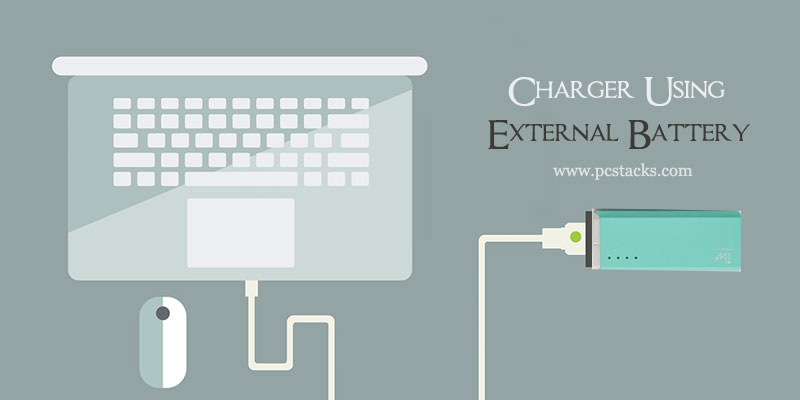
Nothing is more frustrating than pressing your laptop’s power button… and nothing happens. No lights. No sound. No fan. Just silence. If your Acer Aspire 5 refuses to turn on, don’t panic. Most of the time, the issue is simple and fixable at home.
TL;DR: If your Acer Aspire 5 power button is not working, it could be a dead battery, bad charger, power drain issue, loose internal connection, faulty power button, or motherboard problem. Start with easy fixes like checking the charger and doing a power reset. Then move to internal checks if needed. Most users fix the problem without replacing the laptop.
Table of Contents
Why Your Acer Aspire 5 Won’t Turn On
The power button is just a tiny switch. But it depends on many parts working correctly. If even one thing fails, your laptop stays off.
Common reasons include:
- Drained or dead battery
- Faulty charger or adapter
- Power surge issues
- Internal hardware problems
- Broken power button
Let’s fix it step by step.
Fix #1: Check the Charger and Power Outlet
This sounds obvious. But it solves the problem more often than you think.
Start simple.
Step 1: Check the Wall Outlet
- Plug another device into the same outlet.
- See if it works.
- If not, switch outlets.
Step 2: Inspect the Charger
- Look for frayed wires.
- Check for bent connector tips.
- Smell for burnt odor.
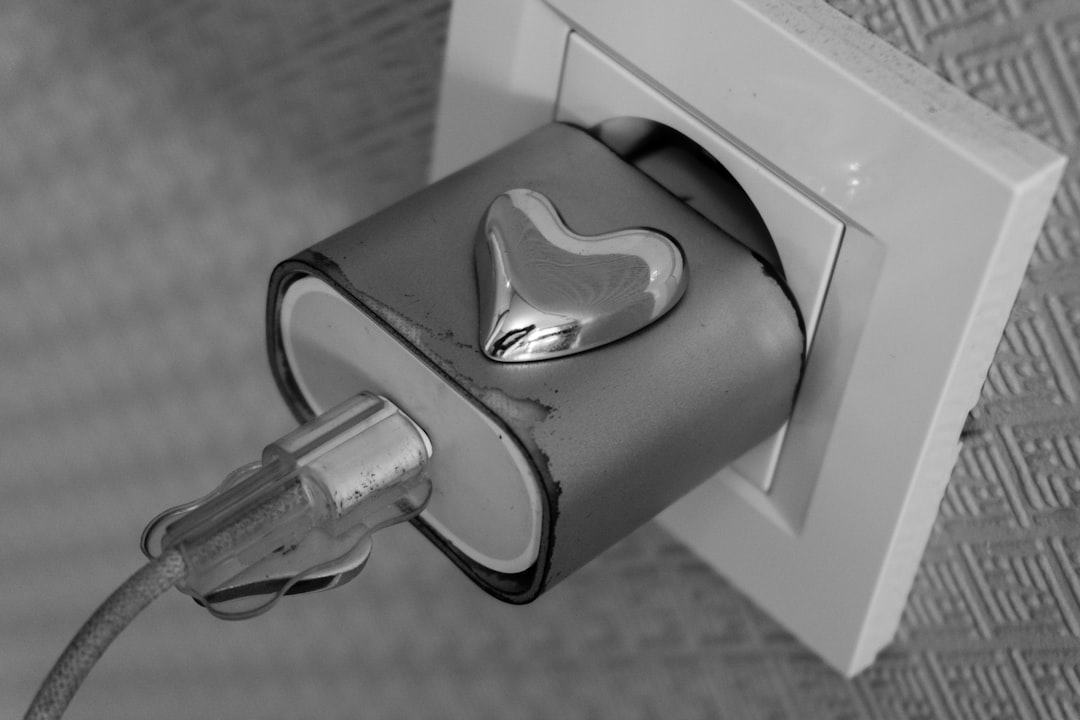
If you have access to another compatible Acer charger, test it.
No charging light? The charger may be dead.
Charging light on but no power? Keep reading.
Fix #2: Perform a Power Reset (The Magic Trick)
This fix works surprisingly often.
Sometimes your laptop gets stuck in a weird power state. A reset clears it.
How to Do It:
- Unplug the charger.
- Remove the battery if your model allows it.
- Press and hold the power button for 30–60 seconds.
- Plug the charger back in (leave battery out at first).
- Try turning it on.
This drains leftover electricity from the motherboard.
If it turns on now, great. If not, continue.
Fix #3: Check the Battery
A worn-out battery can block startup.
Even if you mostly use it plugged in.
Try This:
- Remove the battery (if removable).
- Plug in the charger only.
- Press the power button.
If it starts now, the battery is likely bad.
If your model has a built-in battery:
- Look for a small battery reset pinhole at the bottom.
- Insert a paperclip gently.
- Hold for 10 seconds.

This can re-enable a stuck internal battery.
Fix #4: Check for Screen Issues (Maybe It’s Actually On)
Sometimes the laptop is running… but the screen is black.
Listen carefully.
- Do you hear the fan?
- Do you see keyboard lights?
- Does the charging LED turn on?
If yes, the laptop might not be the problem. The display might be.
Test with an External Monitor:
- Connect an HDMI cable to a TV or monitor.
- Turn the laptop on.
- Press Fn + F5 (or display toggle key).
If the external screen works, your laptop display may need repair.
Still no life? Keep going.
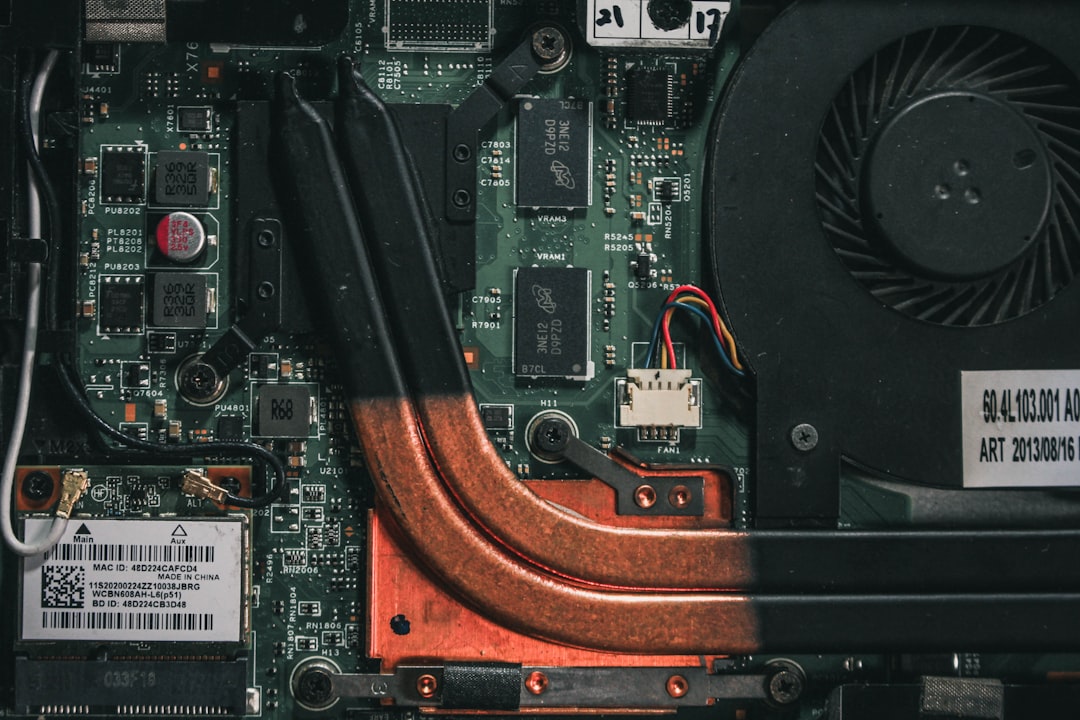
Fix #5: Inspect the Power Button Internally
If none of the basic fixes worked, the button itself may be loose or broken.
This step requires opening the laptop.
Only do this if you feel comfortable.
What You’ll Need:
- Small Phillips screwdriver
- Plastic pry tool
- Clean workspace
Steps:
- Power off and unplug everything.
- Remove bottom screws.
- Carefully pry open the panel.
- Locate the power button board or ribbon cable.
- Check if it is loose or disconnected.
If the cable is loose, reconnect it firmly.
Try powering it on again.
If the button feels physically stuck or doesn’t click anymore, it may need replacement.
Fix #6: Check for Motherboard Issues
This is the last possibility.
If your Acer Aspire 5:
- Shows no lights
- Makes no sound
- Does nothing at all
The motherboard may have a problem.
Common causes:
- Power surge damage
- Liquid spill
- Burned power IC chip
- Short circuit
This usually requires professional repair.
If your laptop is still under warranty, contact Acer support.
Tools You May Need
If you’re going beyond basic troubleshooting, these tools help.
| Tool | Purpose | Difficulty Level | Important? |
|---|---|---|---|
| Phillips Screwdriver | Open laptop panel | Easy | Yes |
| Plastic Pry Tool | Safely open casing | Easy | Recommended |
| Multimeter | Test charger voltage | Medium | Optional |
| Paperclip | Press battery reset pinhole | Very Easy | Sometimes |
| Replacement Power Button | Fix broken switch | Medium | If needed |
If you’re not comfortable using these, a local repair shop can help.
How to Prevent This Problem in the Future
Now let’s stop it from happening again.
1. Use a Surge Protector
Power spikes damage motherboards. A surge protector is cheap insurance.
2. Don’t Yank the Charger
Pulling the cable stresses the charging port and internal circuits.
3. Avoid Overheating
- Use the laptop on hard surfaces.
- Clean fans yearly.
- Keep vents dust-free.
4. Don’t Ignore Battery Swelling
If your laptop base looks warped, replace the battery immediately.
When to Call a Professional
It’s time to seek help if:
- You smell burning
- You see smoke
- The laptop was exposed to water
- You’re uncomfortable opening it
Motherboard repairs can be tricky. A trained technician has the right tools.
Quick Troubleshooting Checklist
Before you give up, run through this quick list:
- ✅ Tested different wall outlet
- ✅ Tested different charger
- ✅ Performed power reset
- ✅ Removed battery and tried AC only
- ✅ Checked external monitor
- ✅ Inspected internal power cable
If all boxes are checked and nothing works, repair is likely needed.
Final Thoughts
A dead Acer Aspire 5 can feel scary. Especially if you rely on it daily.
But in many cases, the fix is simple.
Start small. Stay calm. Follow the steps in order.
Most power issues come down to:
- Battery problems
- Charging failures
- Temporary power glitches
Only rarely is the motherboard truly dead.
Take your time. Don’t rush. And if needed, get professional help.
Your Acer Aspire 5 might just power back on and surprise you.
And when it does… you’ll feel like a tech hero.