Your VR session is ready. The headset is on. SteamVR is waiting. But your controller? Dead. No lights. No buzz. No fun.
Don’t panic. Most SteamVR controller issues are easy to fix. You do not need to be a tech wizard. You just need a few smart steps.
TLDR: If your SteamVR controller won’t turn on, start with the basics. Charge it fully, check the cable, and try a hard reset. Then inspect firmware updates, Bluetooth pairing, and USB drivers. In most cases, the issue is either battery-related or a simple connection glitch.
Table of Contents
Start With the Obvious (Yes, Really)
It may sound silly. But simple fixes solve most problems.
1. Charge the Controller Properly
Your controller might just be empty.
- Plug it into a wall charger, not just your PC.
- Use a reliable USB cable.
- Let it charge for at least 30 minutes.
Look for the charging LED.
- Orange light usually means charging.
- Green light means full battery.
- No light? Keep reading.
Some cables charge phones fine but fail with controllers. Try a different cable. Try a different outlet. Small changes matter.
Image not found in postmeta2. Check the Power Button
Hold the power button for at least 2–3 seconds.
Still nothing? Try holding it for 10 full seconds. Sometimes the controller is frozen. A longer hold can wake it up.
Do a Hard Reset
If charging does not help, try a hard reset.
This fixes many strange glitches.
For HTC Vive Wands:
- Plug the controller into your PC with a USB cable.
- Hold down the Trigger, Menu Button, Trackpad Button, and Grip Buttons at the same time.
- Keep holding for about 10 seconds.
- Release the buttons.
Your PC may detect a new USB device. That is normal.
For Valve Index Controllers:
- Plug into a power source.
- Hold the System button for 15 seconds.
- Release and wait.
Now try turning it on normally.
Check for Battery Problems
Batteries do not last forever.
If your controller is older, the internal battery may be weak.
Signs of Battery Trouble
- Controller turns on briefly, then dies.
- Battery percentage jumps around wildly.
- It only works when plugged in.
If this is happening, the battery may need replacement.
This is not always a DIY job. Opening the controller can void your warranty. If it is still under warranty, contact support first.
Inspect the Charging Port
Dust happens. Pocket lint happens. Life happens.
Look inside the charging port with a flashlight. Do you see debris?
- Blow compressed air gently into the port.
- Do not use metal objects.
- Do not poke aggressively.
A blocked port can stop charging completely.
Is SteamVR the Problem?
Sometimes the controller is fine. The software is not.
1. Restart Everything
Classic advice. It works.
- Turn off SteamVR.
- Restart your PC.
- Unplug your VR base stations for 30 seconds.
- Plug everything back in.
Then try again.
2. Check for Firmware Updates
Outdated firmware can cause weird behavior.
Open Steam.
- Go to SteamVR.
- Open Devices.
- Select Update Firmware if available.
Follow the steps carefully. Do not unplug during updates.
Image not found in postmetaRe-Pair the Controller
Your controller might not be paired correctly.
This is common after updates or system changes.
To Re-Pair:
- Open SteamVR.
- Go to Devices.
- Select Pair Controller.
- Turn on the controller.
If it does not turn on at all, plug it into USB during pairing. Sometimes that jump-starts the process.
If pairing fails repeatedly, try a different USB port on your PC.
Check Your USB Drivers
Yes. Drivers again.
Corrupted USB drivers can block communication.
Steps to Refresh USB Devices:
- Unplug all VR USB devices.
- Open Device Manager on Windows.
- Look under Universal Serial Bus controllers.
- Right-click and uninstall suspicious or unknown VR devices.
- Restart your PC.
When Windows boots, it will reinstall clean drivers automatically.
Then reconnect your VR hardware.
Bluetooth Issues Can Block Power On
SteamVR controllers use Bluetooth to communicate with base stations or the headset.
If Bluetooth fails, the controller may not respond properly.
Try This:
- Disable Bluetooth in Device Manager.
- Restart your PC.
- Enable Bluetooth again.
Also ensure no other strong Bluetooth devices are interfering nearby.
Wireless chaos is real.
Test on Another PC
This step is powerful.
If possible, connect your VR system to a different computer.
- If the controller works there, your main PC has the issue.
- If it still does not work, the controller itself is likely faulty.
This simple test saves hours of guessing.
Look for Physical Damage
Be honest. Has it fallen recently?
Drops can damage internal components.
Check for:
- Loose rattling sounds inside.
- Cracks near the handle.
- Buttons stuck down.
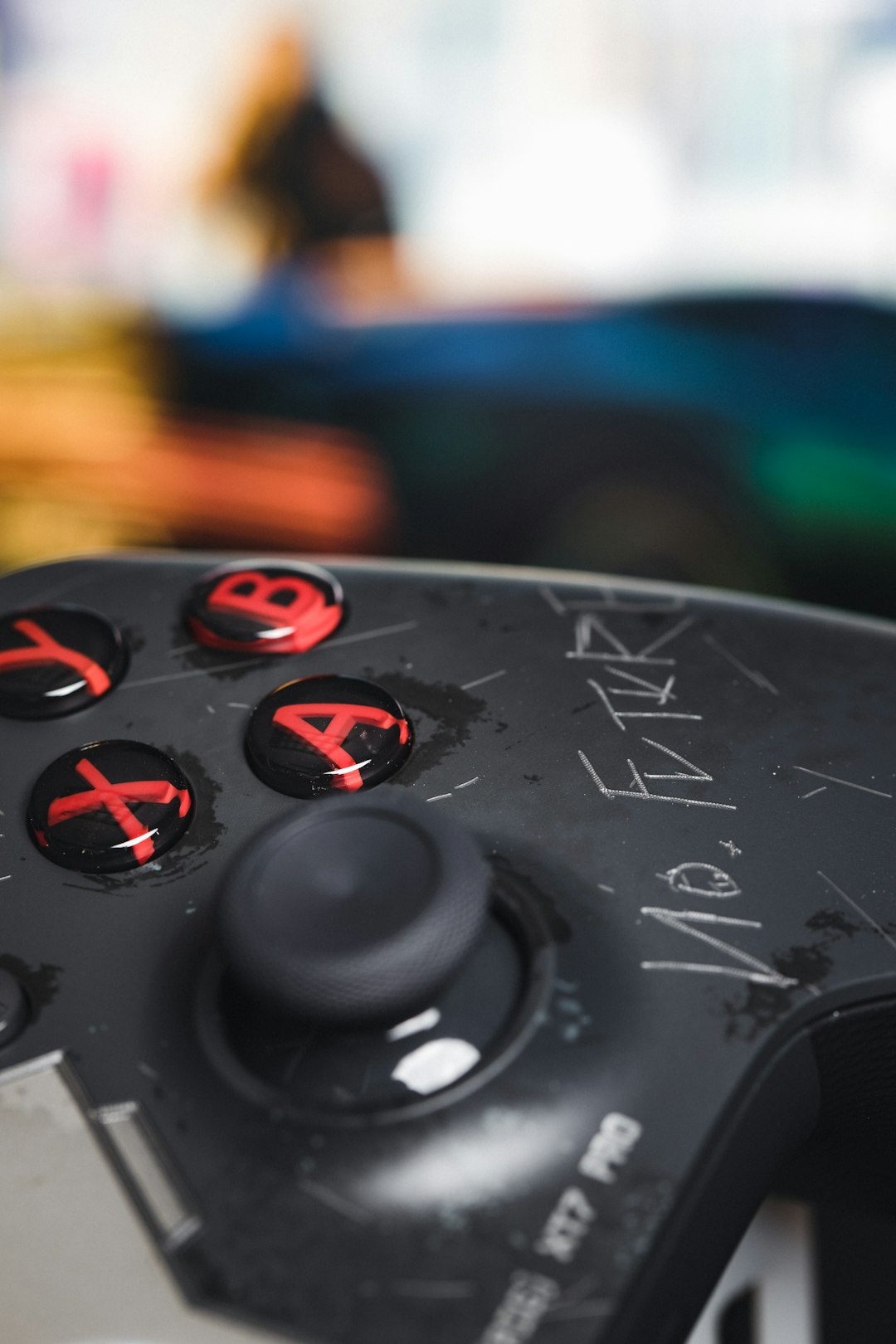
If you see serious damage, repair or replacement may be necessary.
When It Turns On But Does Nothing
Sometimes the controller lights up but does not track.
That is a different issue.
Check Your Base Stations
- Are they powered on?
- Do they have a clear line of sight?
- Are they mounted securely?
Reflective surfaces can confuse tracking.
Mirrors. Glass cabinets. Even shiny TVs.
Cover them temporarily and test again.
Factory Reset as a Last Resort
If nothing else works, try a factory reset.
This clears deep software corruption.
The steps vary slightly by controller model. Always check official documentation for your version.
After reset:
- Fully charge the controller.
- Update firmware.
- Re-pair with SteamVR.
This often brings “dead” controllers back to life.
When to Contact Support
Sometimes, it is not you.
Contact support if:
- The controller will not charge at all.
- It overheats while charging.
- It is still under warranty.
- You suspect battery swelling.
Do not ignore battery swelling. That is rare but serious.
Quick Troubleshooting Checklist
If you want a fast action plan, follow this order:
- Charge with a wall adapter and new cable.
- Hold power button for 10–15 seconds.
- Perform hard reset.
- Restart PC and SteamVR.
- Update firmware.
- Re-pair the controller.
- Refresh USB drivers.
- Test on another PC.
Move step by step. Do not skip around randomly.
Good Habits to Prevent Future Problems
A few small habits keep your controllers healthy.
- Do not let the battery drain to 0% often.
- Use quality charging cables.
- Keep firmware updated.
- Store controllers in a dry place.
- Avoid dropping them. Obvious. But important.
Treat them well. They are tiny motion computers, after all.
Final Thoughts
A SteamVR controller that won’t turn on feels dramatic. But usually, the fix is simple.
It is often a drained battery. Or a bad cable. Or a frozen firmware hiccup.
Take a breath. Follow the steps. Be patient.
Most controllers come back to life with a little care.
And when they do, your virtual worlds will be waiting.