So you just got a second monitor. Nice move. More screen space means more work done, more games visible, and fewer windows stacked on top of each other. The good news? Enabling a secondary monitor on Windows is usually quick and painless. You just need to know where to click and what cables to use.
TLDR: Plug your second monitor into your PC using the correct cable. Open Settings > System > Display. Click Detect if it does not show up. Choose how you want to use it, such as Extend or Duplicate, then adjust the layout.
Table of Contents
Why Use a Second Monitor?
Let’s start with the fun part.
A second monitor gives you:
- More workspace for multitasking
- Better productivity for work or school
- Improved gaming or streaming setups
- Cleaner organization of apps and windows
You can keep email open on one screen. Work on a document on the other. Or watch videos while browsing. Once you try two monitors, it is hard to go back.
Step 1: Check Your Ports
Before anything else, look at your computer. Look at your monitor. Check what ports you have.
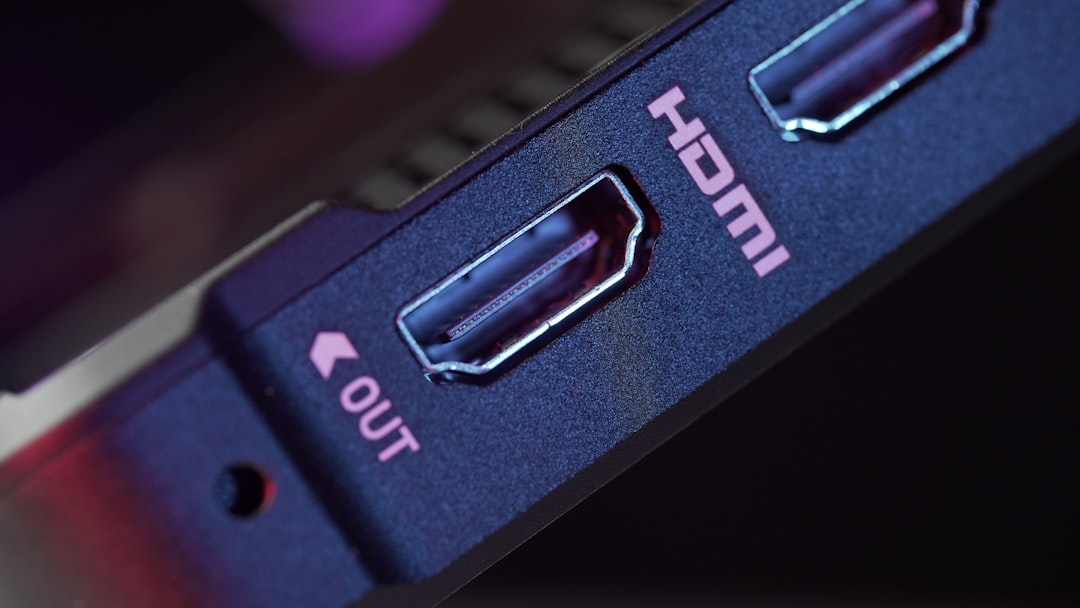
Common display ports include:
- HDMI – Very common
- DisplayPort – Popular on newer PCs
- VGA – Older, blue connector
- DVI – Older but still used
- USB-C – Common on laptops
Your PC and monitor must have matching ports. If they do not, you can use an adapter.
For example:
- HDMI to DisplayPort adapter
- USB-C to HDMI adapter
Make sure your cable is not damaged. Loose or broken cables cause many display issues.
Step 2: Connect the Second Monitor
Now plug everything in.
- Turn off your computer (optional but safe).
- Connect the cable from your PC to the second monitor.
- Plug the monitor into power.
- Turn on the monitor.
- Turn on your computer.
Most of the time, Windows will detect the second screen automatically. You might see your desktop appear right away.
If nothing happens, do not worry. We will fix that next.
Step 3: Open Display Settings
This is where the magic happens.
Follow these steps:
- Right-click on your desktop.
- Click Display settings.
Or:
- Open Start
- Click Settings
- Go to System
- Select Display
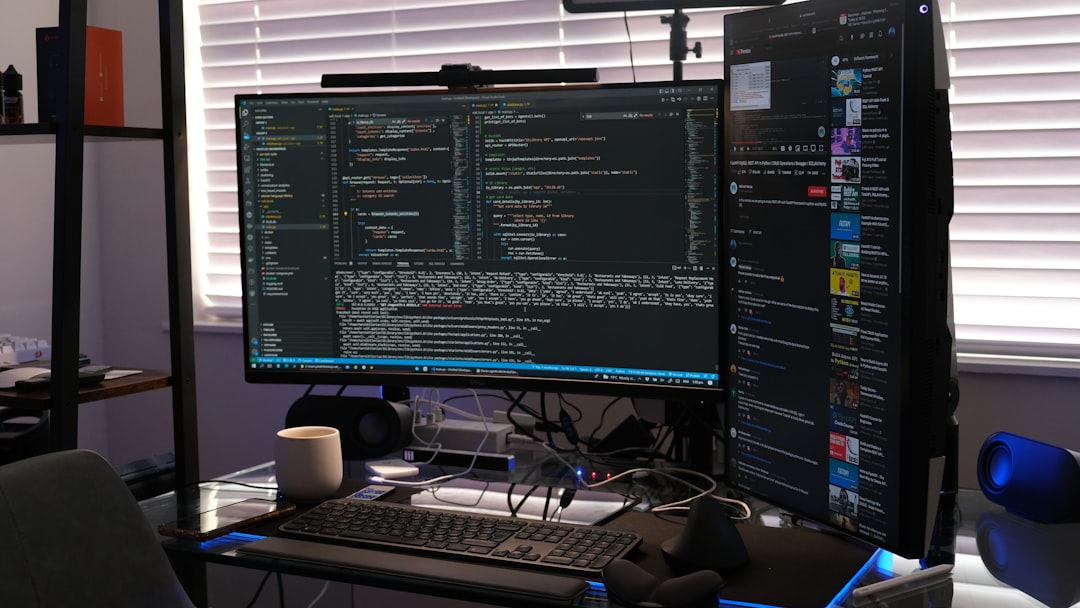
You will see a visual layout of your monitors. They are labeled as 1 and 2.
Step 4: Detect the Monitor
If your second monitor does not show up:
- Scroll down in Display settings
- Click Detect
Windows will search for connected displays.
If it still does not appear:
- Check the cable connection
- Try a different port
- Restart your computer
- Make sure the monitor input source matches the cable (HDMI 1, HDMI 2, etc.)
Sometimes the fix is simple. Very simple.
Step 5: Choose How You Want to Use the Monitor
This part is important. Windows gives you different display modes.
Scroll to the section called Multiple displays.
You will see options like:
- Duplicate these displays
- Extend these displays
- Show only on 1
- Show only on 2
Duplicate
This shows the same content on both screens. Good for presentations.
Extend
This creates one large desktop across both screens. This is the most popular choice.
Show only on 1 or 2
This disables one screen. Useful for troubleshooting.
For most people, choose Extend. Click Apply.
Step 6: Arrange the Monitors Correctly
This step makes your mouse move naturally between screens.
In Display settings, you will see two boxes labeled 1 and 2.
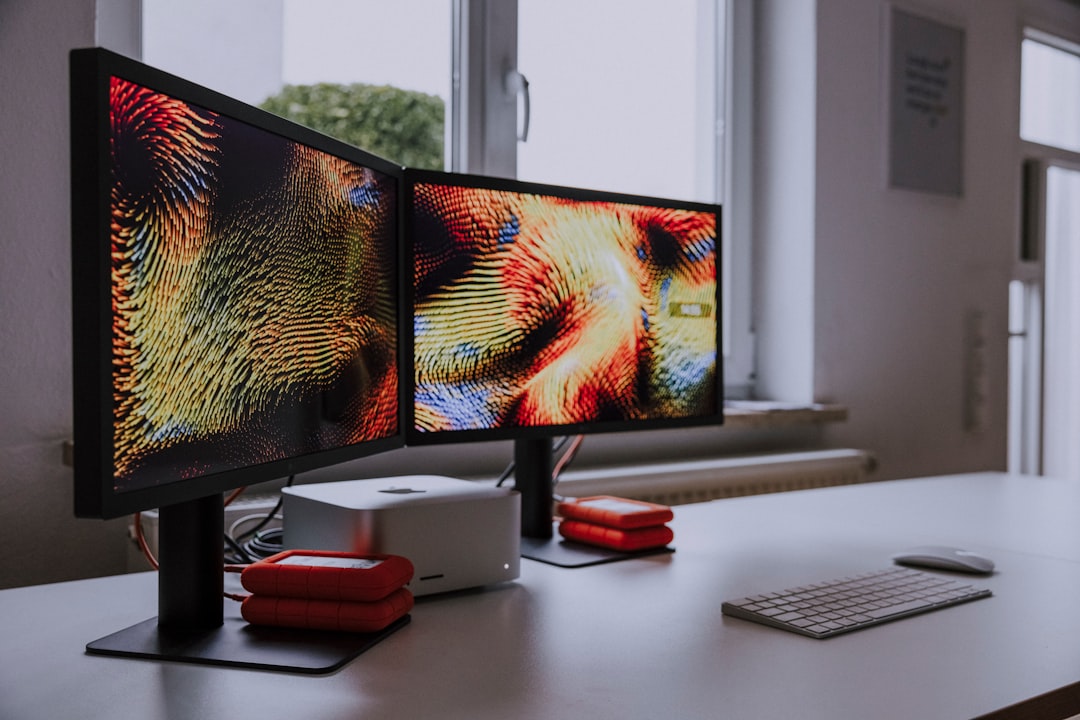
Drag them to match how your monitors sit on your desk.
For example:
- If monitor 2 is on the right, drag it to the right of monitor 1.
- If it is on the left, drag it left.
- If one is higher, adjust vertically.
Click Apply.
Now your cursor will glide smoothly between screens. No weird jumps.
Step 7: Adjust Resolution and Scaling
Sometimes the display looks stretched or blurry. That is a resolution issue.
To fix it:
- Click on the monitor you want to adjust.
- Scroll to Display resolution.
- Choose the recommended resolution.
Each monitor may have different ideal settings.
You can also adjust Scale if text looks too small or too large.
- 100% is standard
- 125% or 150% makes text bigger
Pick what feels comfortable for your eyes.
Keyboard Shortcut Trick
Here is a fast shortcut.
Press:
Windows Key + P
A small menu will appear on the right side of your screen.
You can quickly switch between:
- PC screen only
- Duplicate
- Extend
- Second screen only
This is super useful during meetings or presentations.
If Your Second Monitor Is Not Working
Sometimes things go wrong. That is normal.
1. Update Graphics Drivers
- Right-click Start
- Click Device Manager
- Expand Display adapters
- Right-click your graphics card
- Select Update driver
Outdated drivers cause display issues.
2. Check Graphics Card Limits
Some older graphics cards only support one monitor. Check your GPU specifications online.
3. Try a Different Cable
Cables fail more often than screens do.
4. Test the Monitor on Another Device
This helps you see if the monitor itself is broken.
Using a Laptop with a Second Monitor
Laptops make this even easier.
Just connect via:
- HDMI
- USB-C
- Thunderbolt
Many modern laptops support two or even three external displays.
If your laptop has limited ports, use a docking station. It expands your connectivity in seconds.
Tips for the Best Dual Monitor Experience
Now that everything works, let’s optimize.
Make One Monitor Your Main Display
- Click the monitor in Display settings
- Check Make this my main display
Your taskbar and Start menu will appear there.
Match Monitor Sizes If Possible
Two very different sizes can feel awkward.
Use Matching Resolutions
This keeps everything aligned better.
Organize Your Cables
Messy cables ruin a clean setup.
Common Questions
Can I Use a TV as a Second Monitor?
Yes. Just connect via HDMI. Adjust resolution for best clarity.
Can I Add a Third Monitor?
If your graphics card supports it, yes. The setup process is the same.
Does Windows 10 and 11 Work the Same Way?
Yes. The steps are nearly identical. The layout may look slightly different.
Final Thoughts
Setting up a second monitor on Windows is easier than most people think. Plug it in. Open Display settings. Choose Extend. Arrange the layout. Done.
The biggest problems usually come from cables or outdated drivers. Fix those, and you are good to go.
Once you start using two monitors, your productivity can jump fast. Everything feels smoother. Cleaner. More efficient.
So go ahead. Connect that second screen. Enjoy the extra space. And say goodbye to cramped windows forever.